What to use online sticky notes for
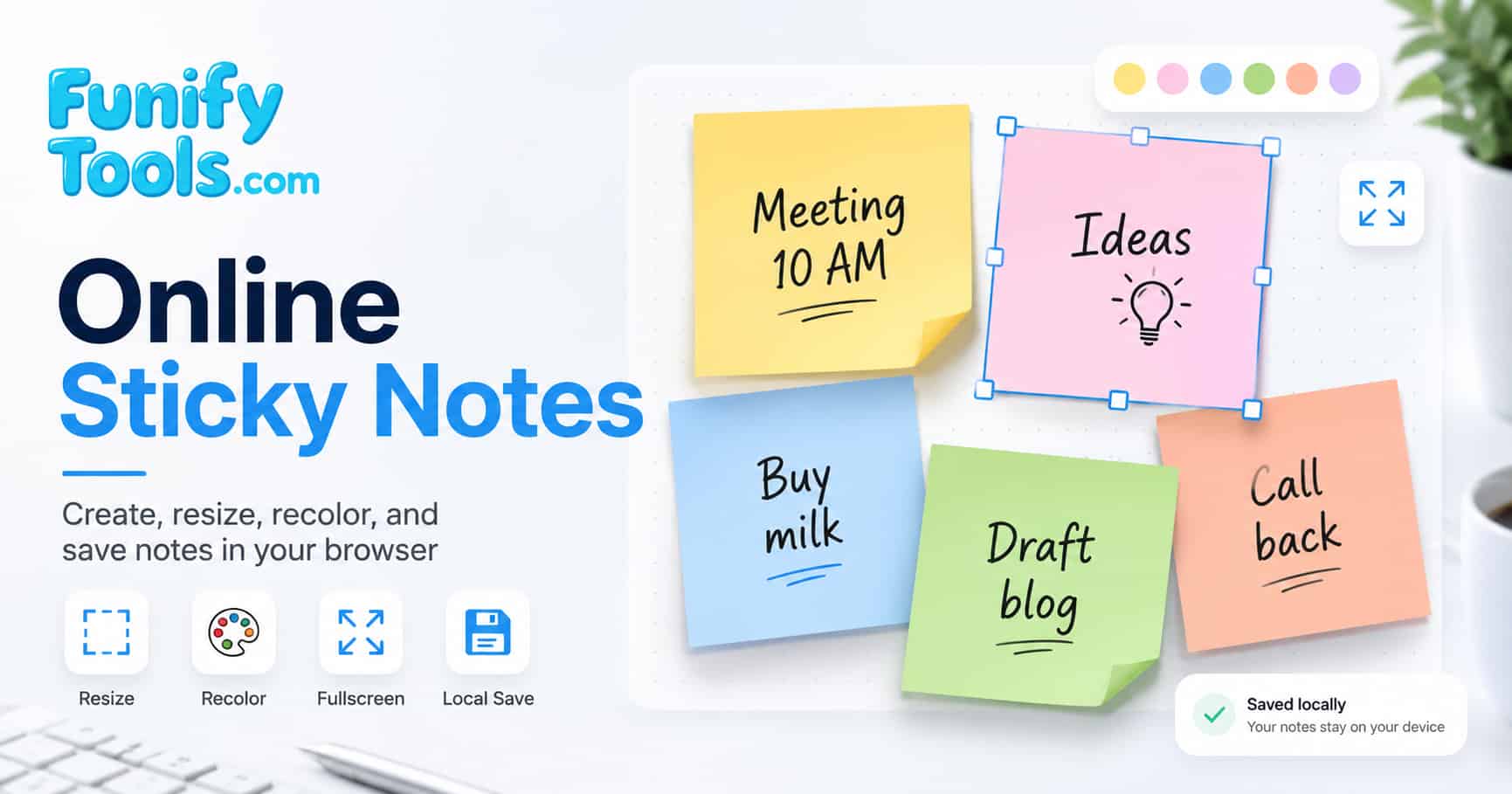
Online sticky notes are useful when you need a quick place to capture information without opening a full document, calendar, or project management app. A note can hold a short task, reminder, idea, question, study point, shopping item, meeting topic, or anything else you want to keep visible while you work.
This browser-based sticky notes tool works especially well as a temporary planning board. You can create separate cards for different subjects, resize them according to the amount of information they contain, and arrange them into groups. Because each card remains visible as an individual item, important details are easier to scan than they would be in one long text document.
Some practical ways to use the workspace include:
- Daily tasks: Create one card for each important task or use a single card as a short checklist for the day.
- Quick reminders: Keep deadlines, appointments, phone calls, and follow-up items where you can see them easily.
- Ideas and brainstorming: Record ideas as separate cards so they can be reviewed and developed later.
- Study notes: Separate definitions, formulas, questions, and revision topics into clearly labeled notes.
- Work planning: Organize current assignments, meeting points, pending decisions, and completed work.
- Writing preparation: Collect headings, supporting points, keywords, and examples before creating a longer document.
Organize related notes into groups
The workspace provides five groups that can be used as separate sticky note boards. Instead of placing every memo in the same area, assign each group a clear purpose. This keeps unrelated information apart and makes it easier to return to the notes you need.
For example, Group 1 could contain today’s tasks, Group 2 could hold work reminders, Group 3 could be used for personal plans, Group 4 for study notes, and Group 5 for ideas you want to revisit later. You can also organize groups by project, subject, priority, or time period.
| Group | Suggested purpose | Example notes |
|---|---|---|
| Group 1 | Today | Important tasks, calls, and appointments |
| Group 2 | Work | Project updates, meeting points, and follow-ups |
| Group 3 | Personal | Shopping, errands, and household reminders |
| Group 4 | Study | Questions, key concepts, and revision topics |
| Group 5 | Ideas | Future plans, creative ideas, and things to research |
Try to give each group one consistent purpose. If the same group contains work tasks, recipes, study material, and travel plans, the board can become difficult to scan. A simple structure is usually more useful than a detailed system that takes extra time to maintain.
Use note colors with a clear purpose
Different background and text colors can make an online memo board easier to understand at a glance. Rather than choosing a random color for every card, create a small color system and use it consistently. The meaning of each color should be easy for you to remember.
You might use red or orange for urgent items, yellow for general reminders, blue for information, green for completed work or positive ideas, and purple for topics that require more research. Another option is to assign one color to each project or subject.
Avoid using too many similar colors on the same board. When every note has a different color, none of them stands out. Two to four clearly defined colors are usually enough for a practical personal workspace. Make sure the text color also has enough contrast with the background so each memo remains comfortable to read.
Write sticky notes that are easy to understand
A useful sticky note should communicate its purpose within a few seconds. Begin with the action, topic, or result that matters. For example, “Send revised invoice by Friday” is clearer than “Invoice,” and “Review chapters 4–6” is more useful than “Study.” Specific wording reduces the time needed to remember what a note was supposed to mean.
Keep each card focused on one subject whenever possible. A note containing a long mixture of unrelated tasks can become difficult to update. If the content grows beyond a short memo, divide it into multiple cards or move the detailed information to a document and keep only the next action in the sticky note.
These simple writing habits can make your notes more useful:
- Start task notes with a clear action word such as “Call,” “Send,” “Check,” “Book,” or “Review.”
- Add a date or time when a reminder has a real deadline.
- Include enough context to understand the note when you return later.
- Keep one main purpose per card instead of combining unrelated topics.
- Delete or update notes that are no longer relevant.
- Resize longer notes so the important text remains visible and easy to scan.
Build a simple daily sticky note workflow
A sticky notes board is most helpful when it stays current. At the beginning of the day, review your active group and identify the few items that matter most. Create new cards only for meaningful tasks, reminders, or ideas. If every small action becomes a separate card, the board can quickly become crowded.
During the day, update a note when the situation changes instead of creating a duplicate. You can change its text, color, or size to reflect its current status. For example, an urgent note can use a stronger color, while a completed item can be changed to green before it is removed.
At the end of the day or week, remove completed and outdated notes. Move unfinished information into the appropriate group and keep the main board focused on what still requires attention. This short review helps prevent the workspace from turning into a collection of forgotten reminders.
How saved browser notes fit your workflow
Your sticky notes, selected groups, colors, sizes, and other card settings are saved in the browser you are currently using. This allows you to refresh the page or return later and continue using the same memo board without creating an account.
The saved workspace belongs to that browser environment. Opening the page in another browser, another browser profile, or a different device creates a separate workspace rather than automatically displaying the same notes. Clearing the browser’s site data or using its private browsing mode may also remove or limit saved notes.
For the most consistent experience, return to the tool using the same browser and device. The workspace is well suited to quick personal notes, everyday reminders, study points, and temporary planning. Information that must be shared, synchronized across devices, or preserved as a permanent record is better kept in a dedicated notes or document service.