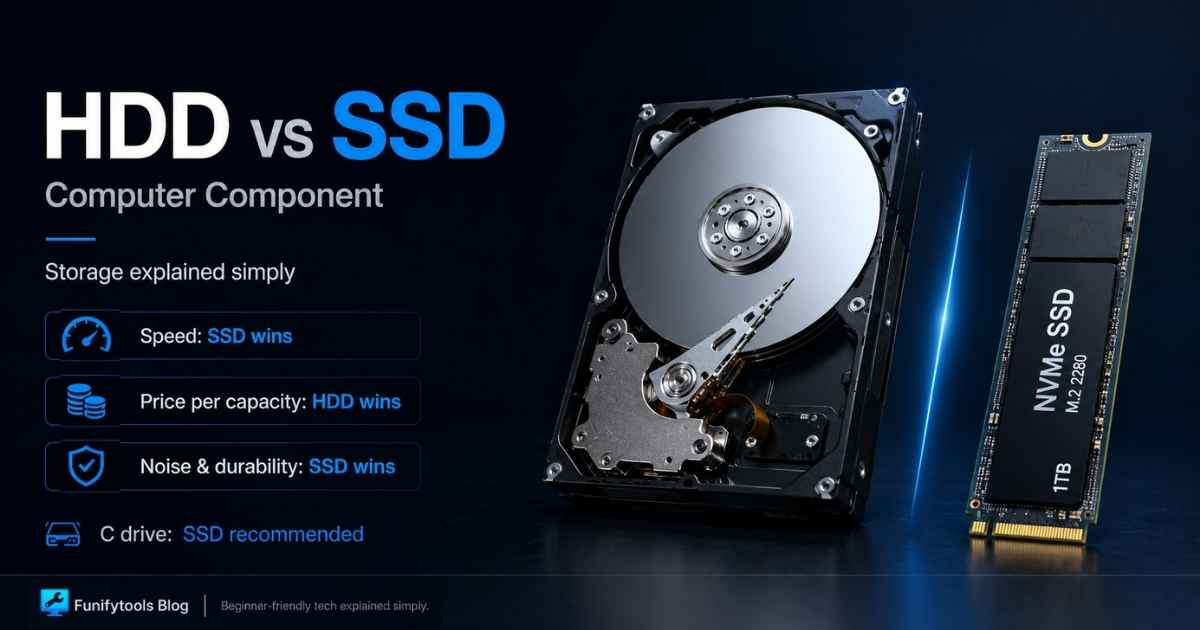
Last time, we explored RAM (memory). Today, let’s dive into another key part of every computer: storage devices.
Storage is where your computer keeps the things you care about: the operating system, apps, games, project files, family photos, downloaded videos, and backups. It also affects how quickly the system wakes up, opens programs, loads game maps, copies files, and handles large creative projects.
The best storage setup is not always the fastest drive money can buy. A good choice balances speed, capacity, reliability, heat, price, and backup strategy. A tiny but very fast SSD can still feel limiting if it is always full, while a huge but slow drive can make the whole system feel older than it is.
What Is Storage?
Storage is where your computer permanently keeps your data — the operating system, programs, photos, videos, music, and documents. Unlike RAM, storage retains data even when the power is off, so you can reboot your PC and pick up right where you left off.
If RAM is short-term memory, then storage is your long-term memory — a warehouse that keeps information safe and ready to recall anytime.
This difference matters because RAM and storage solve different problems. RAM helps with active work right now, while storage decides what can be kept, reopened, moved, backed up, or restored later. A balanced PC needs both enough RAM for current tasks and enough storage for everything that stays with you over time.
Why Storage Matters
One of the biggest factors in how “fast” your PC feels is the storage drive.
-
Old days with HDDs: Windows booting took 1–2 minutes, programs took forever to open, and game loading screens lasted several minutes.
-
Now with SSDs: Boot times drop to under 10 seconds, programs launch instantly, and even a 50GB game can load in 10–20 seconds on an NVMe SSD.
Storage capacity also matters. If your drive runs out of space, you can’t install new apps, and Windows will slow down because it lacks room for temp files. A system with enough free capacity + a fast drive stays smooth across all tasks: booting, gaming, video editing, and file transfers.
It is a good habit to leave some free space on an SSD. When a drive is nearly full, it has less room for background cleanup, caching, updates, and temporary files. The exact amount depends on the drive and workload, but keeping roughly 10-20% free is a simple rule that helps performance and avoids last-minute storage emergencies.
Evolution of Storage Technology
-
Early days: Magnetic tape and floppy disks — tiny capacity, very slow.
-
HDDs (Hard Disk Drives): Mechanical spinning disks, up to 20TB capacity, cheap per GB.
-
SSDs (Solid State Drives): No moving parts, based on flash memory, far faster and more reliable.
Today, nearly all laptops and desktops ship with SSDs as standard.
That shift changed the feel of everyday computing. Moving from an HDD to even a basic SATA SSD can make an old PC feel surprisingly usable again. Moving from SATA SSD to a fast NVMe SSD is more subtle for simple tasks, but it becomes useful when copying large files, loading heavy games, editing video, or working with big project folders.
HDD vs SSD
HDD (Hard Disk Drive)
-
Mechanical platters + read/write heads
-
Pros: Cheapest per GB, massive storage (2TB–20TB+)
-
Cons: Slow read/write, noisy, fragile to shocks
HDDs are still useful when capacity matters more than speed. They make sense for archives, media libraries, backups, surveillance footage, and files you do not open constantly. They are not ideal as a main operating system drive anymore because their mechanical seek time makes the whole system feel slower.
SSD (Solid State Drive)
-
Flash-based, no moving parts
-
Pros: Silent, durable, 10–20× faster than HDD
-
NVMe PCIe SSDs reach 7GB/s+ transfer speeds
-
Cons: Higher price per GB (though dropping fast)
SSDs are the better choice for the operating system, apps, active games, and current work projects. They are silent, handle random reads much better, and are more resistant to movement because there are no spinning platters or moving heads. For a modern PC, an SSD boot drive is one of the most important comfort upgrades.
Storage in Action
Storage isn’t just a “warehouse” — it directly affects responsiveness:
-
Booting Windows: HDD → 1+ min | SSD → <10 sec
-
Gaming: HDD → long load screens, stutter | NVMe SSD → seamless map transitions
-
Video Editing: HDD → laggy previews | SSD → smooth 4K/8K playback and caching
-
Virtual Memory: When RAM runs out, SSDs make paging far less painful than HDDs
SSD + RAM = the ultimate combo for a responsive system.
For creators, storage speed can also affect the editing timeline. Large video files, cache files, proxies, and project assets all need to be read and written repeatedly. A fast SSD will not replace a good CPU or GPU, but it can reduce stutter when the project constantly pulls data from disk.
Interfaces & Generations
-
SATA SSDs: Up to ~600 MB/s, great for budget upgrades
-
NVMe PCIe 3.0 SSDs: 3–3.5 GB/s, mainstream standard
-
NVMe PCIe 4.0 SSDs: 5–7 GB/s, common in modern builds
-
NVMe PCIe 5.0 SSDs: 10+ GB/s, bleeding-edge speed (requires proper cooling)
Terminology tip: Say “PCIe 4.0 SSD” or “PCIe 5.0 SSD” rather than just “PCIe 4.0/5.0”.
For most people, PCIe 4.0 NVMe drives are the current sweet spot. They are fast, widely supported, and usually priced well. PCIe 5.0 drives are impressive, but they can run hotter and cost more, so they make the most sense for users who regularly move huge files or want the newest hardware for a high-end build.
Also check the motherboard layout before buying. Some M.2 slots share lanes with SATA ports, some support only certain drive lengths, and some are connected through the chipset rather than directly to the CPU. The drive may still work, but the manual tells you where it will work best.
Pre-Purchase Checklist
Capacity
-
OS + apps only: 500GB–1TB
-
Gaming/video editing: 2TB+
Interface
-
Does your motherboard have an M.2 NVMe slot?
Speed
-
Check PCIe gen support (3.0 / 4.0 / 5.0) and rated read/write speeds
Endurance (TBW)
-
For long-term use, prefer TLC NAND over QLC for durability
Backup
-
HDD → RAID/NAS for bulk storage
-
SSD → external drives/cloud for critical files
Cooling
-
High-speed NVMe SSDs need heatsinks or thermal pads to avoid throttling
Capacity planning is more personal than it looks. A small 500GB drive can be fine for a simple office PC, but it fills quickly once you install several modern games, record videos, or keep raw photos. A 1TB SSD is a comfortable baseline for many people, while 2TB feels much safer for gaming and creative work.
Do not forget backups. A fast SSD can still fail, get accidentally erased, or be lost with the laptop. Important files should exist in at least two places, and truly important files should ideally have an external or cloud copy as well. Storage performance is useful, but storage safety is what saves you when something goes wrong.
Wrapping Up
Storage is one of the easiest ways to dramatically boost PC performance. Just switching to an SSD can transform your boot times, app launches, gaming, and file work.
-
HDDs still shine for cheap bulk storage.
-
SSDs (especially NVMe) bring the speed, silence, and reliability.
-
The best builds often use HDD + SSD together — a balance of capacity and performance.
A practical modern setup is simple: use an NVMe SSD for Windows, apps, games, and active projects, then add a larger HDD or external drive for backups and long-term archives if you need lots of space. This gives you the speed you feel every day without paying SSD prices for every file you own.
When choosing storage, ask what the drive will do. Boot drive, game library, editing scratch disk, backup drive, and archive drive all have different priorities. Once the role is clear, the right balance of speed, capacity, endurance, and price becomes much easier to see.
Thanks for reading! Next time, we’ll explore another vital PC component: the Power Supply Unit (PSU) — the heart that keeps everything running.
This article is also available in Korean: Read the Korean version