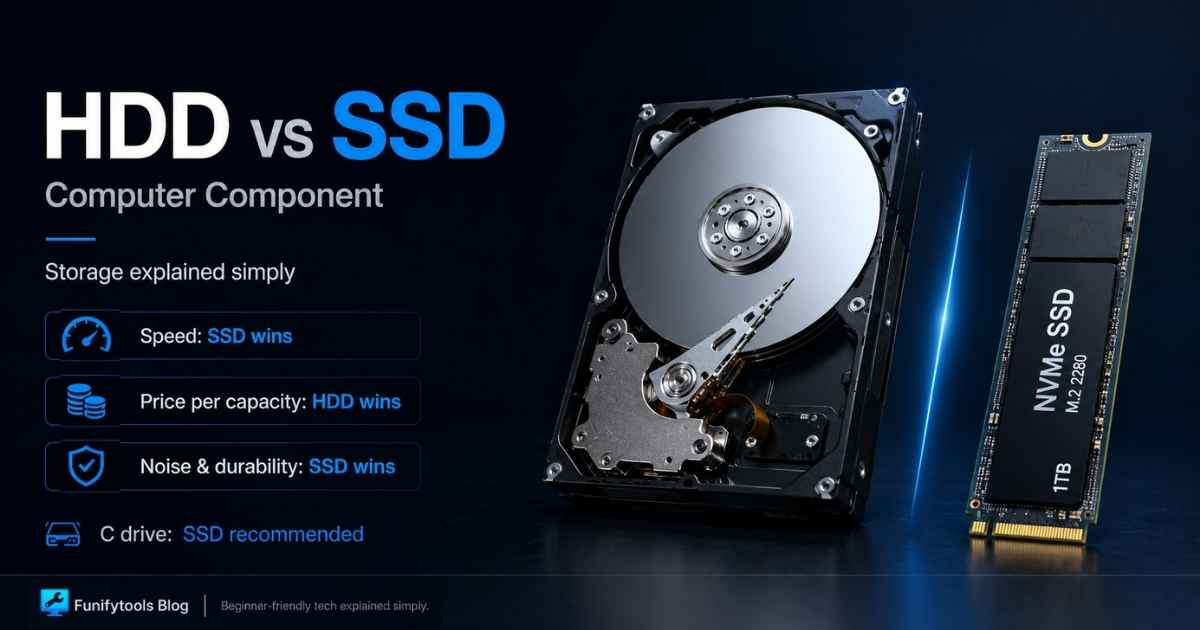
10-second lesson
- An HDD stores data on spinning magnetic disks, while an SSD stores data on flash memory chips.
- SSDs are much faster because they do not have to wait for a spinning disk or moving read/write head.
- HDDs still make sense when you need a lot of storage for the lowest possible cost.
- For a Windows system drive, an SSD is the easy choice because it affects boot time, app loading, and overall responsiveness.
- NVMe SSDs are faster than SATA SSDs, but even a basic SATA SSD feels much quicker than an old HDD.
- HDDs are better for large archives, backups, media libraries, and files you do not open all day.
- SSDs are better for operating systems, games, creative apps, coding projects, and anything you open often.
- The best setup for many people is simple: SSD for speed, HDD for cheap bulk storage.
Learn More in Detail
HDDs and SSDs both do the same basic job: they store your files. Your operating system, apps, photos, videos, downloads, games, documents, and random folders you keep meaning to clean up all live on some kind of drive. But even though an HDD and an SSD can both hold data, they feel completely different in real use. If you have ever upgraded an older computer from a hard drive to an SSD, you already know the difference is not subtle. It can feel like the machine suddenly woke up.
The short version is this: an HDD is mechanical, and an SSD is electronic. That one difference explains most of what people notice. HDDs have spinning magnetic disks inside. SSDs use flash memory chips. A hard drive has to physically move parts to find and read data. An SSD can jump to the data electronically. That is why SSDs usually win on speed, noise, durability, and everyday smoothness, while HDDs still win when you want a large amount of storage at a lower cost.
This is also why storage choice matters more than beginners expect. People often focus on the CPU or graphics card first, and those parts are important. But if your main drive is slow, the whole computer can feel slow. Windows takes longer to start. Apps take longer to open. File searches feel heavier. Games load more slowly. Even simple tasks can feel delayed because the system keeps waiting for storage to catch up.
What Is an HDD?
HDD stands for Hard Disk Drive. It is the older, classic type of computer storage. Inside an HDD, there are round magnetic disks called platters. These platters spin at high speed, and a tiny read/write head moves across them to record or read data. If that sounds a little like a record player, that is not a bad mental image. It is not exactly the same technology, but the idea of spinning media plus a moving head gets you close enough.
Because an HDD depends on moving parts, it has physical limits. The disk has to spin. The head has to move to the right position. The drive has to wait for the correct data location to come around. This takes time, even if the delay is measured in milliseconds. Once you multiply that tiny delay across thousands of small files, the difference becomes very noticeable.
That is why HDDs can feel especially slow when booting Windows, launching apps, or opening folders full of small files. A hard drive may still be fine for a large movie file or a backup archive, but random everyday access is where it starts to show its age. Modern operating systems constantly read and write small bits of data in the background, and HDDs are not great at that kind of work.
What Is an SSD?
SSD stands for Solid State Drive. Instead of spinning disks, an SSD stores data in flash memory. There are no platters, no moving head, and no motor inside. The drive reads and writes data electronically through memory chips, which is why it can respond so much faster than an HDD.
This is the reason even a cheap SSD can make an older computer feel dramatically better. You are not only improving file copy speed. You are improving the feel of the whole system. Booting, logging in, opening a browser, launching office apps, loading game maps, importing photos, installing updates, and switching between programs can all feel faster because the computer spends less time waiting on storage.
SSDs also make no mechanical noise. There is no disk spinning and no head clicking around inside the drive. They are more resistant to physical shock than HDDs because they do not rely on delicate moving parts. That does not mean SSDs are impossible to damage, but they are generally better suited for laptops, portable drives, and systems that move around.
Why SSDs Feel So Much Faster
The biggest real-world difference is access time. An HDD has to physically locate data. An SSD can access data almost instantly by comparison. This matters more than people think because your computer rarely reads one giant file in a perfectly clean sequence all day. It constantly touches many small files: system files, app files, cache files, browser data, thumbnails, logs, settings, updates, and temporary files.
On an HDD, jumping between all those small pieces of data creates delay. On an SSD, those jumps happen much faster. That is why an SSD upgrade often feels better than a CPU upgrade for an old office or home computer. The processor may be capable enough, but it was stuck waiting for the hard drive.
This is also why Windows on an SSD feels so much better than Windows on an HDD. The C drive is not just a place where the operating system sits quietly. It is constantly being used. Windows reads system files, writes updates, stores temporary data, manages browser cache, handles app files, and keeps background services running. If the C drive is slow, the computer feels slow.
SATA SSD vs NVMe SSD
Not all SSDs are the same. The two names beginners run into most often are SATA SSD and NVMe SSD. A SATA SSD is usually a 2.5-inch drive that connects through the older SATA interface. It is much faster than an HDD, but it is limited by the SATA connection.
An NVMe SSD usually looks like a small stick that plugs directly into an M.2 slot on the motherboard. NVMe uses a faster interface built for modern flash storage, so it can move data much faster than SATA. If your computer supports NVMe, it is usually the better choice for a main drive.
That said, the difference between an HDD and any SSD is much bigger than the difference between a SATA SSD and an NVMe SSD for normal everyday use. If you are upgrading an old computer from an HDD, even a SATA SSD will feel like a massive improvement. NVMe becomes more important for large file transfers, high-end gaming, video editing, heavy creative work, and professional workloads that move lots of data.
Where HDDs Still Make Sense
It is tempting to say HDDs are old and everyone should stop using them, but that is not really fair. HDDs still have a place. Their biggest advantage is price per capacity. If you need several terabytes of storage and you do not need everything to load instantly, an HDD can still be the smart buy.
For example, an HDD is still useful for backups, video archives, photo archives, downloaded media, old project files, security camera footage, and large files you rarely open. If the drive mostly sits there holding data, raw speed may not matter as much. You probably do not need expensive flash storage for a folder of old videos you open twice a year.
This is why many desktop users still use a mixed setup. They put Windows, apps, games, and active projects on an SSD. Then they use a large HDD for storage that does not need to be fast. It is not the flashiest setup, but it is practical, affordable, and easy to understand.
Where SSDs Are the Obvious Choice
Your main system drive should be an SSD. For most people, that means the C drive. This is the drive that holds Windows, installed apps, browser files, update files, and all the little pieces of data that make the computer feel responsive or sluggish. Putting the operating system on an HDD in a modern PC is one of the easiest ways to make the whole machine feel worse than it should.
SSDs are also the better choice for games you play often. They can reduce loading screens, improve asset streaming, and make big open-world games feel smoother when the game needs to pull data quickly. A faster SSD will not magically give you a better graphics card, but it can remove storage-related delays.
Creative work also benefits from SSDs. Video editing, photo editing, audio production, 3D work, coding, and design projects often involve opening, saving, indexing, previewing, or generating lots of files. Working from an SSD makes those tasks feel cleaner and less annoying. It is one of those upgrades you notice every day.
Durability, Noise, and Heat
Because HDDs have moving parts, they are more sensitive to drops, bumps, and vibration. This matters more for laptops and external drives than for a desktop tower that never moves. If an HDD is running and gets hit or dropped, the risk is higher because the internal parts are physically moving.
HDDs can also make noise. Some drives are quiet, but you may still hear spinning, clicking, or vibration, especially in a quiet room. SSDs are silent because there is nothing mechanical inside. If you are trying to build a quiet PC, an SSD-only setup is easier to keep silent.
Heat depends on the model and workload. HDDs can generate heat from the motor and moving parts. NVMe SSDs can also get warm under heavy load, especially high-performance models. In most normal systems, this is manageable, but it is still worth installing drives properly and making sure the computer has decent airflow.
Capacity: How Much Storage Do You Actually Need?
Storage size depends on how you use the computer. For a basic laptop or office desktop, 512GB can be enough if you mostly use web apps, documents, and streaming services. For a more comfortable modern setup, 1TB is a safer starting point. It gives you room for Windows, apps, downloads, photos, and a decent number of games without constantly cleaning up space.
Gamers may want 1TB or 2TB of SSD storage because modern games can be huge. Creative users may want even more, especially if they work with video, high-resolution images, or large project folders. If you keep years of photos, movies, backups, and raw footage, adding a large HDD can still make sense.
A good practical setup is a 1TB NVMe SSD for the operating system and frequently used programs, plus a 2TB, 4TB, or larger HDD for bulk storage. If your budget allows, replacing the HDD with a large SSD is nicer, but not always necessary.
What About Reliability?
Both HDDs and SSDs can fail. That is the part people do not like to hear. HDDs can fail because of mechanical wear, shock, motor issues, or head problems. SSDs can fail because flash memory has a limited write lifespan, controller problems, firmware issues, or electrical damage. In normal use, a decent SSD can last a long time, and a decent HDD can last a long time too. But neither one should be treated as permanent.
The real rule is simple: if the file matters, back it up. It does not matter whether it is on an HDD, SSD, external drive, laptop, desktop, or cloud folder. Drives are storage devices, not promises. Important photos, documents, business files, school work, source code, and creative projects should exist in more than one place.
For backups, HDDs are still popular because they offer lots of capacity for less money. For active work, SSDs are better because they are faster and more responsive. That split still makes sense for a lot of people.
How to Choose Between HDD and SSD
If you are choosing a drive for your C drive, choose an SSD. If your motherboard supports NVMe, choose an NVMe SSD. This is the easiest recommendation in the whole storage discussion. The system drive affects too many everyday tasks to leave it on a slow hard drive.
If you are choosing a D: or E: drive, think about what you will store there. If you plan to store games, active projects, files you edit, or anything you open frequently, an SSD is better. For backups, old photos, large videos, or long-term storage, an HDD can be fine.
If budget is tight, do not overcomplicate it. Get an SSD for the operating system first. Even a smaller SSD for Windows and your main apps is better than running everything from a hard drive. You can add a large HDD later for storage if needed.
If your budget allows, an all-SSD setup offers a cleaner experience. An all-SSD computer is quieter, faster, and simpler. You do not have to think as much about which files belong on the fast drive and which files belong on the slow drive. Everything just feels snappier.
The Simple Takeaway
HDDs and SSDs are both storage devices, but they are built for different priorities. HDDs are about capacity and cost. SSDs are about speed, responsiveness, silence, and everyday convenience. That is why the best choice is not always one or the other. The best choice is the one that matches the job.
For the main system drive, use an SSD. For the fastest modern setup, use an NVMe SSD. For large-capacity storage on a budget, use an HDD. For a balanced desktop, use both: SSD for the operating system and daily work, HDD for large files and backups.
If you remember only one thing, make it this: never judge a computer's speed by the processor alone. Storage can make or break the whole experience. A computer with a decent CPU and an SSD often feels better than a computer with better specs trapped behind a slow hard drive. That is why switching from HDD to SSD is still one of the most noticeable upgrades you can make.
This article is also available in Korean: Read the Korean version