10-second lesson
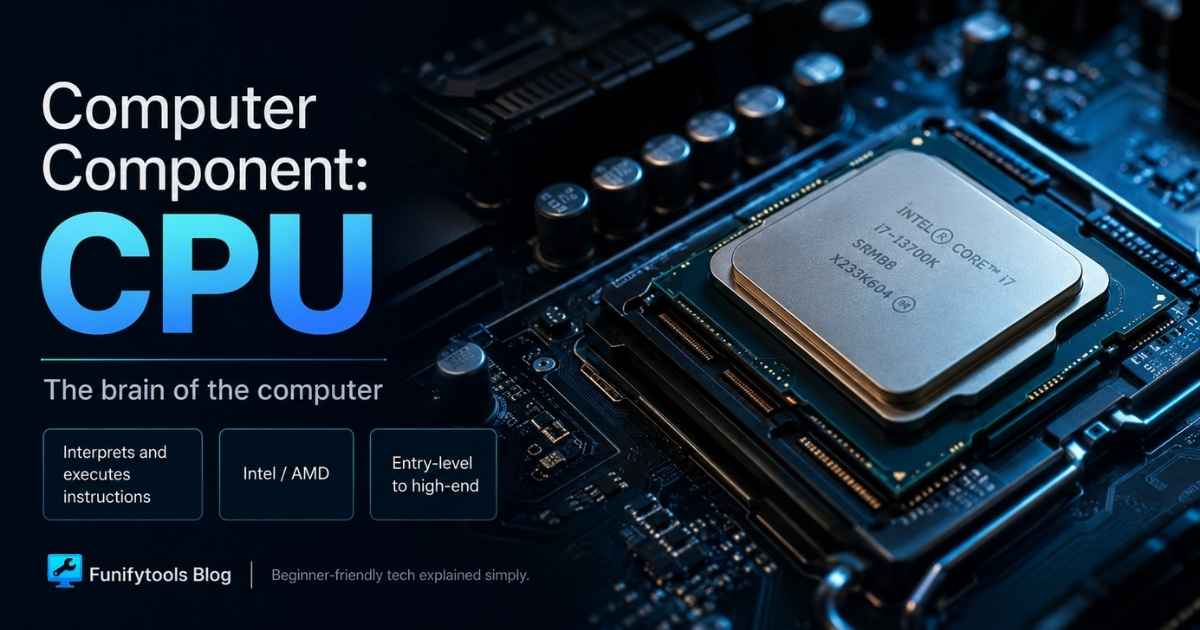
- The CPU, or Central Processing Unit, is the part of a computer that reads instructions and keeps everything moving.
- It is often called the brain of the computer, but a better way to think of it is the system’s main traffic director.
- Every click, app launch, browser tab, game action, and background task passes through the CPU in some way.
- More cores help with multitasking, while faster clock speeds help each core finish work more quickly.
- Cache is tiny high-speed memory inside the CPU, and it can make a big difference in games and heavy workloads.
- Some CPUs include integrated graphics, which means the computer can display video without a separate graphics card.
- Intel and AMD use model names like Core i5-13600KF or Ryzen 7 7800X3D to show generation, performance tier, and special features.
- The best CPU is not always the most expensive one; it is the one that fits your motherboard, budget, cooling, and actual use.
A Closer Look at the CPU
The CPU is one of those computer parts everyone has heard about, but a lot of people only have a rough idea of what it actually does. You will hear people say, “The CPU is the brain of the computer,” and that is a decent shortcut. It gets the point across. But if you want a more useful picture, think of the CPU as the part that keeps the whole system organized. It reads instructions, makes decisions, sends work to other parts, and keeps the machine from becoming a pile of expensive parts doing nothing.
When you open a browser, type into a search box, launch a game, unzip a file, edit a photo, run a spreadsheet, or watch a video, the CPU is involved. It may not do every single piece of work by itself. Modern computers also rely on the GPU, memory, storage, network chips, and other controllers. But the CPU is the part that coordinates a huge amount of that activity. It is constantly asking: What instruction comes next? What data do I need? Which task gets priority? Where should this result go?
That is why a slow CPU can make a computer feel sluggish even when the rest of the parts are technically working. A fast SSD can make apps open quickly, and a strong graphics card can make games look great, but the CPU still has to manage the logic behind everything. When the CPU is overwhelmed, the whole system can feel like it is waiting in line.
What the CPU Actually Does
At the simplest level, a CPU follows a cycle: fetch, decode, execute, and repeat. It fetches an instruction, figures out what that instruction means, carries it out, and then moves on to the next one. This happens incredibly fast. We are talking billions of cycles per second on modern desktop and laptop processors.
That sounds simple, but the real work gets complicated fast. A CPU is not just sitting there doing one thing at a time like a person reading a checklist. It is juggling many tiny operations, predicting what might happen next, moving data between different memory layers, and splitting work across multiple cores. The whole point is to avoid wasting time. A modern CPU is built around one basic idea: keep useful work flowing as often as possible.
For everyday users, this means the CPU affects how responsive a computer feels. If you are writing documents, browsing the web, joining video calls, and using basic tools, you do not need the most extreme processor on the shelf. But you still want a CPU that can handle modern software without dragging its feet. For gamers, creators, developers, engineers, and people who multitask heavily, the CPU matters even more.
Cores and Threads: The Multitasking Side
A core is like a worker inside the CPU. Older processors often had one core, so they handled tasks in a much more limited way. Modern CPUs usually have several cores. Four, six, eight, twelve, sixteen, or more cores are common depending on the class of processor.
More cores can help when your computer needs to do many things at once. For example, you might have a browser open with twenty tabs, music playing, a file download running, a video call active, and a photo editor in the background. A CPU with more cores can divide that work more comfortably. It can also help with tasks that are built to use many cores, such as video rendering, software compilation, 3D rendering, compression, and heavy data processing.
Threads are related, but they are not exactly the same thing. A thread is a stream of work that the CPU can manage. Some CPU cores can handle more than one thread at a time through technologies like simultaneous multithreading. That does not magically double real-world performance, but it can help the CPU stay busy and use its resources more efficiently.
This is where a lot of beginner CPU comparisons get messy. More cores do not automatically mean better performance in every situation. A game, app, or workflow has to be able to use those cores well. Some tasks still care more about how fast each individual core is. That is why a newer 6-core CPU can sometimes feel faster than an older 12-core CPU in everyday use.
Clock Speed: How Fast Each Core Runs
Clock speed is usually shown in gigahertz, or GHz. A higher number means the CPU can run more cycles per second. On paper, that sounds like an easy way to compare processors. A 5.0 GHz CPU must be faster than a 4.0 GHz CPU, right? Not always.
Clock speed matters, but it is only one part of the story. CPU architecture matters too. A newer CPU may do more useful work per clock cycle than an older one. That is why comparing only GHz can lead you in the wrong direction. It is kind of like comparing two cars only by engine RPM. It tells you something, but not enough to know which one is actually faster on the road.
Still, clock speed is useful when comparing processors from the same generation and product family. If two CPUs are built on similar architectures, the one with higher boost clocks may perform better in lightly threaded tasks like basic gaming, office work, or quick app interactions.
Cache: The Tiny Memory That Punches Above Its Weight
CPU cache is easy to ignore because it does not get marketed as loudly as cores and clock speed. But cache can matter a lot. Cache is very fast memory built into or very close to the CPU. It stores data the processor is likely to need soon, so the CPU does not have to keep reaching out to slower system memory.
Think of it like keeping your most-used tools on the desk instead of walking to the garage every time you need a screwdriver. The more often the CPU can find what it needs in cache, the less time it wastes waiting.
This is one reason some CPUs perform surprisingly well in games. Certain workloads benefit heavily from large cache because they constantly reuse data. AMD’s Ryzen 7 7800X3D is a good example of a CPU known for strong gaming performance because of its large 3D V-Cache. It is not just about raw clock speed. The extra cache can reduce waiting and help games run more smoothly.
Integrated Graphics: Do You Need a Separate GPU?
Some CPUs include integrated graphics. That means the processor has a built-in graphics section capable of sending an image to your monitor. If you are building a simple office PC, home computer, media machine, or troubleshooting setup, integrated graphics can be incredibly useful.
Without integrated graphics, you usually need a dedicated graphics card to get a display signal. That is not a problem for gaming PCs or creative workstations that already use a GPU. But for a basic build, skipping integrated graphics can accidentally create a situation where the computer turns on but cannot show anything on the screen.
Intel often uses the letter F in some model names to indicate no integrated graphics. For example, a Core i5-13600KF supports overclocking because of the K, but the F means it does not include integrated graphics. AMD naming is different, and not every Ryzen desktop CPU follows the same simple pattern. That is why it is always worth checking the exact model before buying.
Intel CPU Names Without Losing Your Mind
CPU naming can feel like someone spilled alphabet soup on a product page. But once you know what to look for, it becomes easier. Take Intel Core i5-13600KF as an example.
The “Core i5” part tells you the general performance tier. In the traditional Intel lineup, i3 is usually entry-level, i5 is mainstream or mid-range, i7 is higher-end, and i9 is enthusiast-level. That does not mean every i7 beats every i5 in the real world, especially across different generations, but it gives you a basic starting point.
The “13” in 13600 points to the generation. In this example, it belongs to Intel’s 13th generation Core family. The remaining digits help identify the model’s position inside that generation. Higher numbers usually suggest a stronger model, but again, compare within the same generation whenever possible.
The letters at the end matter too. “K” usually means the chip is unlocked for overclocking, assuming you also have the right motherboard and cooling. “F” means no integrated graphics. So the Core i5-13600KF is a mid-range Intel CPU from the 13th generation, unlocked for overclocking, and built without integrated graphics.
The important thing is not to memorize every suffix. The important thing is to know that those suffixes are not random. They often tell you whether the CPU can overclock, whether it has integrated graphics, and what type of system it is meant for.
AMD CPU Names in Plain English
AMD Ryzen names follow their own style. Take Ryzen 7 7800X3D. “Ryzen 7” tells you the general tier. Ryzen 3 is usually entry-level, Ryzen 5 is mainstream, Ryzen 7 is high-performance, and Ryzen 9 is aimed at heavier users and enthusiasts.
The “7800” part identifies the model family and its place within the generation. In this example, it belongs to AMD’s Ryzen 7000 desktop generation, based on the Zen 4 architecture. The “X” usually points to a higher-performance model, while “3D” means the chip includes AMD’s 3D V-Cache technology.
That “3D” label is a big deal for certain users, especially gamers. It means the CPU has extra stacked cache, which can help performance in games that benefit from quick access to frequently used data. This is why a CPU like the Ryzen 7 7800X3D can be such a popular gaming choice even when other CPUs have more cores or higher clocks.
Just like with Intel, AMD names are useful, but they are not a full review. You still need to check benchmarks, motherboard compatibility, power use, cooling needs, and whether the CPU fits the kind of work you actually do.
How the CPU Works With Other Parts
A CPU never works alone. It needs a motherboard to connect it to the rest of the system. It needs RAM to hold active data. It needs storage to load files and programs. It needs power from the power supply. It needs cooling, because CPUs generate heat when they work. And if the CPU does not have integrated graphics, or if you need serious graphics performance, it needs a dedicated GPU.
This is why choosing a CPU is not only about picking the fastest chip you can afford. The CPU has to match the socket on the motherboard. The motherboard must support the CPU generation. The cooler must be able to handle the heat. The power supply must be good enough for the whole system. And the rest of the build should make sense around it.
A high-end CPU paired with too little RAM, a slow drive, weak cooling, or an outdated graphics card can feel disappointing. Computer performance is a team effort. The CPU is important, but it is not magic.
Gaming, Work, and Everyday Use
For gaming, the CPU matters because games rely on it for simulation, physics, game logic, background systems, and communication with the GPU. If the CPU cannot keep up, the graphics card may sit around waiting for work. This is called a CPU bottleneck. It can lead to lower frame rates, stuttering, or uneven performance.
For video editing, 3D rendering, coding, and creative work, the CPU can matter in a different way. Many professional workloads benefit from more cores and threads. Exporting a video, compiling a large project, rendering a scene, or processing a huge batch of files can hit the CPU hard for long periods of time.
For normal everyday use, you usually want balance. A modern mid-range CPU is more than enough for web browsing, documents, streaming, online classes, simple photo edits, and light multitasking. Spending extra on a flagship CPU may not make YouTube, email, and spreadsheets feel dramatically better. In that case, a faster SSD, more RAM, or a better screen might improve the experience more.
Common CPU Buying Mistakes
One common mistake is buying by brand only. Intel and AMD both make excellent CPUs, and both have had stronger and weaker generations. The better choice depends on the exact model, price, motherboard cost, power use, cooling, and what you plan to do with the computer.
Another mistake is buying too much CPU and too little of everything else. A top-tier processor with only a small amount of RAM or a weak graphics card can be a weird build. Unless your workload truly needs that CPU, a balanced system usually feels better.
A third mistake is ignoring integrated graphics. If the CPU has no integrated graphics and you do not install a graphics card, you may not get a display signal. That one catches people more often than you would think.
Finally, people sometimes forget about heat. Strong CPUs can run hot, especially under heavy load. A good cooler, decent airflow, and a case that is not choking the hardware matter. A CPU that overheats may reduce its speed to protect itself, which means you paid for performance you are not actually getting.
So, What Makes a CPU Good?
A good CPU is not just the one with the biggest number on the box. A good CPU is the one that fits your use case. For a budget office PC, that might mean a reliable chip with integrated graphics and low power use. For gaming, it might mean a CPU with strong single-core performance and enough cores to avoid bottlenecks. For content creation, it might mean more cores, more threads, and strong sustained performance. For a small quiet PC, it might mean efficiency more than raw power.
The smartest way to choose is to start with your actual needs. Ask what you do every day. Browse and write? Game at 1080p or 1440p? Edit video? Run virtual machines? Stream while gaming? Build websites? Train models? Each answer points to a different kind of CPU choice.
The CPU is the central processor, the instruction reader, the task organizer, and one of the biggest reasons a computer feels fast or slow. Once you understand cores, threads, clock speed, cache, integrated graphics, and naming rules, CPU shopping becomes a lot less mysterious. You do not need to become a hardware engineer. You just need enough context to avoid buying the wrong chip for the job.
That is the real takeaway: the CPU is not just a square chip under a cooler. It is the part that keeps the computer thinking, reacting, and coordinating. Pick the right one, and the whole system feels smoother. Pick the wrong one, and even expensive parts can feel oddly held back.
This article is also available in Korean: Read the Korean version