What Is a CPU?
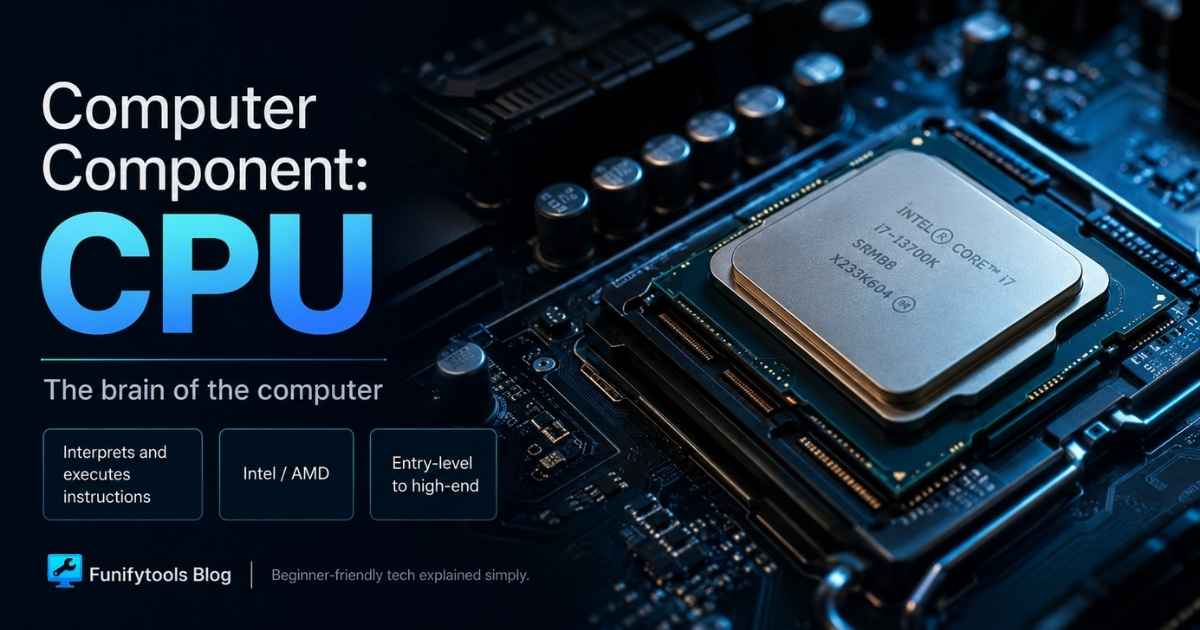
The CPU is the brain and commander of the computer. Every keystroke, every browser window you open, every game you play — all of it is interpreted, managed, and executed by the CPU.
Its role goes far beyond number-crunching: it controls program flow, manages communication with other devices, and orchestrates the entire system like a control tower.
If a computer were a busy office, the CPU would be the person reading requests, deciding what needs to happen next, and sending work to the right place. It does not store all your files like an SSD, and it does not draw complex 3D scenes like a graphics card, but it keeps the whole system moving in the correct order.
When you click an icon, type a password, open a spreadsheet, or load a web page, the CPU is constantly checking instructions and coordinating memory, storage, graphics, and input devices. That is why a faster CPU can make a computer feel more responsive, especially when many tasks are happening at the same time.
The CPU is built around three core parts:
-
ALU (Arithmetic Logic Unit): Performs addition, subtraction, comparisons, and logic operations (AND, OR, etc.).
-
Control Unit: Decides which instruction to run, what data is needed, and where the result should go.
-
Registers: Ultra-fast storage inside the CPU for temporary data during calculations.
Together, they repeat the cycle of Fetch → Decode → Execute billions of times per second. For example, a 4 GHz CPU repeats this cycle about 4 billion times every second — why computers feel instant to us.
In simple terms, "fetch" means the CPU brings in an instruction, "decode" means it figures out what that instruction is asking for, and "execute" means it performs the work. This cycle is easy to understand at a high level, but modern CPUs repeat it at a speed that is almost impossible to imagine in everyday life.
Of course, clock speed alone does not decide everything. Memory speed, storage speed, cooling, and software design also affect how fast a computer feels. Still, this fetch-decode-execute cycle is the basic rhythm behind nearly every action your computer performs.
CPU Generations Explained
You may have heard, “This is a 13th-gen Intel” or “the latest AMD generation.” A CPU generation isn’t just a year label — it represents a new design (microarchitecture) and manufacturing process.
When a generation changes, even CPUs with the same brand name (like i5 or Ryzen 5) may have completely different structures, performance, and supported technologies.
This is why it is risky to judge a CPU only by the family name. A newer Core i5 can outperform an older Core i7 in many everyday tasks, and a modern Ryzen 5 can be more efficient than an older Ryzen 7. The number on the box gives you a clue, but the generation tells you the real context.
Key improvements across generations:
-
Smaller process nodes: e.g., 32nm → 14nm → 10nm → Intel 7. Smaller transistors mean more circuits, less heat, and lower power.
-
New instruction sets: SIMD instructions like AVX/AVX2/AVX-512 boost multimedia and scientific performance.
-
More cores & threads: From 2 cores in the past to today’s 8–24 threads for heavy multitasking, video editing, and rendering.
-
Better cache design: Larger, smarter caches speed up repetitive calculations.
-
New standards: DDR3 → DDR4 → DDR5 memory, PCIe 3.0 → 5.0, new USB and Wi-Fi standards.
Generations also affect motherboard socket compatibility. For example: Intel used LGA1200 up to 10th gen, then switched to LGA1700 at 12th gen. Same “i5,” but incompatible with older boards.
For beginners, the safest habit is simple: never buy a CPU and motherboard separately without checking the exact socket, chipset, and BIOS support list. CPU compatibility is not something you can fix with force. If the socket or BIOS support is wrong, the system may not boot at all.
Intel vs AMD
Intel CPUs
Intel has long been a leader in desktop CPUs. Their lineup includes Core i3, i5, i7, and i9.
In general, Intel CPUs have been known for strong single-core performance, wide software compatibility, and good gaming performance. Many office PCs, gaming desktops, and laptops use Intel chips because the product lineup is familiar and widely supported by motherboard makers and PC manufacturers.
-
i3: Budget, mostly 4 cores. Good for office and web use.
-
i5: Mainstream, 6–10 cores. Great for gaming and multitasking.
-
i7: 8–16 cores. Strong for creators, editing, and rendering.
-
i9: Up to 24 threads. High-end for professionals, streaming, and scientific workloads.
For everyday users, the sweet spot is often the i5 range. It usually offers enough performance for web browsing, office work, gaming, and light creative work without the cost or cooling demands of an i9. The i7 and i9 lines make more sense when your tasks can actually use the extra cores or higher sustained performance.
Model codes matter:
-
K: Unlocked for overclocking.
-
KF: Overclockable but no integrated graphics.
-
F: No integrated graphics (cheaper).
-
T: Low-power model.
Latest designs use a hybrid architecture:
This hybrid design helps the CPU split work more intelligently. A game or heavy foreground app can run on the faster P-Cores, while background tasks such as updates, browser tabs, or chat apps can be handled by E-Cores. The result can be better responsiveness, especially when many things are open at once.
-
P-Cores (Performance Cores): High speed, for gaming and single-threaded tasks.
-
E-Cores (Efficiency Cores): Low power, handle background tasks.
✅ Strengths: High single-core speed, broad software optimization.
⚠️ Weakness: Sockets change often → frequent motherboard upgrades needed.
AMD CPUs
AMD CPUs are especially popular among people who want strong multitasking performance, good value, and a platform that may support several CPU generations. This does not mean AMD is always better in every situation, but it does mean Ryzen deserves serious consideration when building or upgrading a PC.
Since launching the Ryzen series in 2017, AMD has been neck-and-neck with Intel — sometimes ahead in multi-core performance.
-
Ryzen 3: 4 cores / 8 threads. Entry-level.
-
Ryzen 5: 6 cores / 12 threads. Great for gaming.
-
Ryzen 7: 8 cores / 16 threads. Popular with creators.
-
Ryzen 9: 12–16 cores. High-end for streaming, rendering, and pro work.
Recent changes:
-
Shift from AM4 → AM5 socket with DDR5 & PCIe 5.0 support.
-
Most models unlocked for overclocking.
-
3D V-Cache models boost gaming performance significantly.
✅ Strengths: More cores/threads at the same price, excellent for multitasking.
⚠️ Weakness: Some older software/games had optimization issues (much improved now).
The 3D V-Cache models are worth mentioning because they are a good example of how CPU performance is not only about clock speed. By adding a larger cache, these CPUs can keep more game-related data close to the processor, which can improve frame rates in certain titles.
Special Categories
Not every CPU is made for the same kind of computer. A desktop CPU, a laptop CPU, and a server CPU may all perform calculations, but they are designed around very different priorities.
-
Server CPUs
-
Intel Xeon: Stability, ECC memory, multi-socket support.
-
AMD EPYC: Up to 96 cores, great efficiency, popular in data centers.
-
-
Mobile CPUs
-
Intel U / P / H series → balance of power & efficiency for laptops.
-
AMD Ryzen Mobile 7000 (HS/HX) → efficient high-performance laptop chips.
-
Server CPUs focus on stability, huge memory capacity, many cores, and 24/7 reliability. That is why features like ECC memory support and multi-socket configurations matter more than flashy gaming clock speeds.
Mobile CPUs, on the other hand, have to balance performance with heat and battery life. A laptop chip that looks powerful on paper can still slow down if the laptop's cooling system cannot handle it. Here, cooling and battery life are just as important as raw performance.
Compatibility Checklist
CPU shopping becomes much easier when you treat compatibility as a checklist instead of guessing from brand names. Before buying, confirm the items below one by one.
-
Socket & Motherboard
-
Intel sockets change often (e.g., LGA1200 → LGA1700).
-
AMD sockets last longer but now shifting from AM4 to AM5.
-
Always check motherboard CPU support lists & BIOS version.
-
-
Chipset & Features
-
Intel Z-chipsets allow overclocking; B/H chipsets do not.
-
AMD allows overclocking on most CPUs, but low-end boards may not handle the heat.
-
-
BIOS Updates
-
Old boards may not boot with new CPUs until BIOS is updated.
-
Some boards support BIOS flashback (update without CPU).
-
-
Cooler & Case Fit
-
Check whether a cooler is included, bracket compatibility, and case clearance.
-
Good airflow is crucial to prevent overheating.
-
There are also a few practical details that beginners often miss. A powerful CPU may need a stronger power supply, a better cooler, and a case with decent airflow. If you are upgrading an old PC, you should also check whether your RAM type still matches the new motherboard. DDR4 and DDR5 are not interchangeable.
For a smooth upgrade, look up the motherboard's official CPU support page, not only a shopping mall description. Manufacturer support pages usually list the exact CPU model, required BIOS version, and sometimes notes about memory support. This small check can save a lot of frustration later.
How to Choose the Right CPU
The best CPU is not always the most expensive one. The right choice depends on what you actually do with your computer.
-
Basic office and web browsing: A modern Core i3, Ryzen 3, or entry-level laptop CPU is usually enough.
-
Gaming: A current Core i5 or Ryzen 5 is often the best value, especially when paired with a good GPU.
-
Streaming, editing, and creative work: Core i7, Core i9, Ryzen 7, or Ryzen 9 models can save time when exporting video, rendering, or running many apps together.
-
Professional workloads: If your work involves large simulations, virtual machines, databases, or heavy rendering, server or workstation-class CPUs may be worth considering.
Also remember that a CPU is only one part of performance. A strong CPU paired with too little RAM, a slow hard drive, or a weak graphics card can still feel disappointing. A balanced system usually feels better than one part being extremely powerful while the rest of the computer is outdated.
Wrapping Up
Today, we took a deep dive into the CPU:
-
What it is and how it works
-
How generations and types differ
-
What to check for compatibility
The CPU truly is the heart of performance and the brain of control. Choosing wisely means a stable, powerful computer tailored to your needs.
If you are buying or upgrading a computer, start with your purpose. A student writing documents, a gamer chasing smooth frame rates, and a creator exporting 4K video all need different levels of CPU performance. Once you know your use case, the confusing model names become much easier to compare.
Next time, we’ll explore another key component: the GPU (Graphics Card).
Thanks for reading, and happy computing!
This article is also available in Korean: Read the Korean version