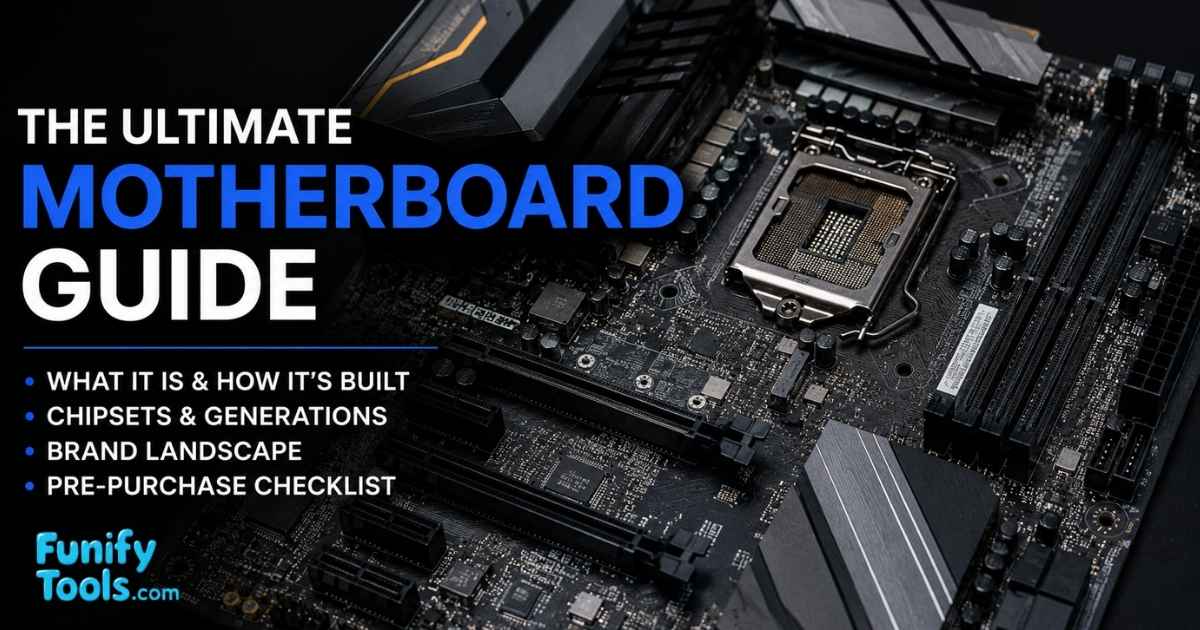
In the last post we covered the PSU. Today, let’s finish the “core parts” series with the motherboard — the central platform where the CPU, GPU, RAM, storage, and PSU meet and are coordinated. While other components often get the headlines, the motherboard quietly determines how well those parts actually work together.
A motherboard is not usually the most exciting part of a PC build, but it is one of the easiest places to make a small mistake that becomes annoying later. A board can limit how many SSDs you install, whether your front USB-C port works, how stable a high-end CPU stays under load, or how easy it is to recover from a bad BIOS setting. In other words, it is less about raw speed on a product box and more about whether the whole system feels solid in daily use.
What Is a Motherboard?
A motherboard is the computer’s central circuit board. It physically connects components, routes both data and power, and exposes the sockets, slots, and ports you use to build a system. That means the motherboard sets limits and opportunities: the socket decides which CPUs fit, the chipset decides what features are available, and the layout affects cooling and upgrade paths.
To borrow an analogy, the motherboard is the theater stage:
-
CPU = the lead actor driving the story and decision-making.
-
GPU = the special-effects team delivering visuals and heavy parallel work.
-
RAM = the stage manager, handing temporary data and props instantly.
-
SSD/HDD = the archives that keep scripts, assets, and long-term data.
-
PSU = the power plant and lighting booth ensuring everything receives stable energy.
-
Motherboard = the stage and backstage crew that make the performance possible and repeatable.
No matter how impressive an individual component looks on paper, without a proper motherboard the system simply won’t reach its potential.
This is why motherboard shopping should begin after you know your CPU, case size, memory type, and storage plan. Once those pieces are clear, the board becomes easier to judge. You are not looking for the fanciest board in the store; you are looking for the board that gives your parts a clean, stable place to work.
Why the Motherboard Matters
1) The Foundation of Performance
The motherboard’s design directly affects system performance, particularly under load. A strong power delivery system (VRM) keeps CPU voltage stable during demanding tasks, preventing throttling and crashes. Likewise, the motherboard determines which PCIe generation is available, how many lanes are wired to each slot, and how memory channels are routed — all of which influence real-world throughput.
VRM (power delivery) — Better VRMs with more phases and adequate cooling support sustained performance on high-core-count CPUs.
PCIe bandwidth — Ensures GPUs and NVMe drives don’t contend for the same lanes, avoiding 'traffic jams'.
Memory routing/layout — Affects maximum stable RAM frequency and overclocking headroom.
For a basic office PC, these differences may not be dramatic. For a gaming PC, creator workstation, or long rendering workload, they can matter a lot. A weak VRM or cramped layout may not fail immediately, but it can lead to higher temperatures, louder fans, unstable memory profiles, or performance that drops after the system has been under load for a while.
2) The Base of Expansion
Beyond the immediate impact on speed, the motherboard dictates what you can add later. Planning ahead here saves money and frustration.
M.2 slots — The number and type (PCIe vs SATA) determine how many NVMe SSDs you can install without external adapters.
PCIe slots/lanes — Decide whether you can run multiple GPUs, a fast NIC, or capture cards simultaneously.
USB/Thunderbolt count & type — Affects day-to-day convenience: external drives, docks, and peripherals.
This is the part people often notice six months after the build. Maybe you want to add another NVMe SSD, a capture card, a faster network card, or more USB devices, only to realize the board has no convenient slot left. Spending a little time on the expansion layout before buying can prevent a surprisingly large amount of future cable clutter and compromise.
3) The Invisible Safety Net
Many features that protect your build are embedded on the motherboard and rarely noticed until they’re needed.
Protection circuits (ESD, surge, OCP/OVP) help guard expensive components from electrical mishaps.
Dual BIOS / BIOS Flashback — lifesavers when a BIOS update goes wrong or when recovering from an incompatible setting.
Debug features are especially helpful for first-time builders. A tiny LED that tells you whether the problem is CPU, RAM, GPU, or boot storage can save hours of guessing. BIOS Flashback is also worth having if you may pair a newer CPU with a board that shipped before that CPU existed, because it can allow a BIOS update without a fully working boot setup.
Anatomy of a Motherboard (Quick Tour)
Here are the main parts to know when you open a motherboard manual or spec sheet.
CPU Socket — e.g., Intel LGA1700, AMD AM5. The socket must match the CPU family, and the BIOS must support the specific CPU model.
VRM (Voltage Regulator Module) — Converts 12V to the lower voltages the CPU needs. Better VRMs and heatsinks mean more stable power delivery and lower temps under load.
Memory Slots — DDR4 vs DDR5 is not interchangeable. Dual-channel operation (two sticks) is typical for balanced performance; layout and trace topology affect overclocking and stability.
PCIe Slots — Check lane configuration (x16/x8/x4) and PCIe generation (3.0/4.0/5.0) for compatibility with GPUs and expansion cards.
M.2 & SATA — NVMe drives use M.2 slots over PCIe; SATA ports are for older SSDs/HDDs. Beware that some boards share lanes, which can disable a SATA port when an M.2 is used.
Chipset — Provides additional I/O like extra USB ports, SATA controllers, and networking features. Higher-tier chipsets generally offer more capabilities.
Rear I/O — The back panel exposes USB-A/C, display outputs (for CPUs with iGPUs), audio jacks, Ethernet, and sometimes Wi-Fi antenna connectors.
When reading a spec sheet, do not stop at the headline features. Check the manual diagram if possible. It will show which M.2 slot is connected to the CPU, which slots share lanes with SATA ports, where fan headers are located, and whether the GPU slot leaves enough room for other cards. The manual often answers the practical questions that the marketing page skips.
Fan headers are another small detail that can affect the building experience. A case with several fans is easier to manage when the board has enough headers in sensible locations. Otherwise, you may need splitters or a fan hub, which is fine, but it is better to plan for that before the case is already open on the desk.
Generations & Chipsets
Intel (typical recent eras)
Intel platforms move quickly; socket and chipset changes can affect upgrade paths.
300-series (LGA1151) — Supported 8th/9th Gen Core processors; largely legacy now.
400/500-series (LGA1200) — Targeted 10th/11th Gen CPUs; some 11th Gen boards gained PCIe 4.0 with vendor updates.
600/700-series (LGA1700) — For 12th/13th/14th Gen CPUs; introduced hybrid P/E cores, DDR5 support, and PCIe 5.0 on certain lanes.
H < B < Z — with Z typically supporting CPU overclocking and the most expansion.
Intel changes sockets more often — upgrades may require a new board.
That does not make Intel a bad choice; it simply means you should treat the CPU and motherboard as a platform pair. If you expect to keep the same CPU for a long time, socket longevity may matter less. If you like upgrading one part every couple of years, the platform roadmap becomes more important.
AMD
AMD has been more conservative with socket longevity recently, which can make upgrades easier in some generations.
AM4 (A320/B450/B550/X570) — Supported a wide range of Ryzen CPUs (Ryzen 1000 → 5000), though not every CPU/board combination works without BIOS updates.
AM5 (B650/X670/X670E) — Brings DDR5 and PCIe 5.0; AMD has signaled longer-term commitment to AM5, improving upgrade prospects.
Moving from AM4 → AM5 generally means switching from DDR4 → DDR5 as well, which affects overall system cost.
For AMD buyers, the big question is often value versus future headroom. AM4 can still be a cost-effective path for budget and midrange builds, especially if you already own DDR4 memory. AM5 costs more upfront but gives access to newer CPUs, DDR5 memory, and a more modern upgrade path.
Naming Cheat Sheet
Understanding model letters helps match a board to your needs quickly.
Intel
H-series: Entry-level and office use — essential features without overclocking.
B-series: Mainstream value — balanced features for most users (no CPU OC).
Z-series: High-end — CPU/memory overclocking, maximum expansion and features.
AMD
A-series: Budget/basic features.
B-series: Mainstream value with reasonable features.
X-series: High-end boards with more lanes/features and OC support.
These letters are useful shortcuts, but they are not a replacement for checking the exact model. A good B-series board can be better for most people than a cheap high-end-looking board with weak cooling or poor I/O. Likewise, many users never need a flagship chipset if they only use one GPU, one or two SSDs, and ordinary USB devices.
Brand Landscape (High-Level Impressions)
Here are some general impressions — brands vary by model and region, so check the spec sheet for the exact board you’re considering.
ASUS — Offers Prime (fundamentals), TUF (durability), ROG Strix (gaming), and ProArt (creator) lines. Often features user-friendly BIOS and USB BIOS Flashback on many models.
MSI — Ranges from PRO (office) to MAG (value gaming) and MEG (flagship). Noted for strong VRMs and practical cooling solutions.
GIGABYTE — Includes UD/DS3H basics and premium AORUS models. Dual BIOS and Q-Flash Plus are helpful recovery and update features.
ASRock — Often competitive on price with creative feature sets (Steel Legend, Phantom Gaming, Taichi).
(Model names and features vary by region — always check the exact spec sheet.)
Brand reputation is helpful, but motherboard quality changes model by model. Even within the same brand, an entry-level office board, a midrange gaming board, and a creator-focused board may have very different VRMs, audio chips, network controllers, BIOS features, and warranty terms. Reviews that include teardown photos, VRM temperature testing, and BIOS screenshots are often more useful than brand impressions alone.
Pre-Purchase Checklist
Before you click buy, run through this checklist to avoid common mismatches and regrets.
CPU Socket & Chipset — Confirm compatibility with your CPU and your upgrade roadmap.
VRM & Heatsinks — For high-core CPUs choose boards with robust VRMs and real heatsinks, not just decorative shrouds.
Memory Support — DDR4 vs DDR5, supported speeds, and QVL for your RAM kit.
PCIe & Storage — Check PCIe generation, x16/x8/x4 lane distribution, M.2 counts, and SATA sharing rules.
I/O & Networking — Do you need USB-C/Thunderbolt, 2.5G/10G LAN, or built-in Wi-Fi 6/6E?
Form Factor — ATX, micro-ATX, or mini-ITX — ensure case compatibility and clearance for coolers and GPUs.
Serviceability — BIOS Flashback, clear debug LEDs, and dual BIOS make troubleshooting less painful.
Brand & Warranty — Consider firmware update cadence, local support, and RMA reputation.
Also check front-panel support. A case may include front USB-C, multiple USB-A ports, or a combined audio connector, but the motherboard needs the matching internal headers to use them. This is one of those details that does not affect benchmarks at all, yet it strongly affects how polished the finished PC feels.
If you plan to keep the computer for years, leave a little room for growth. One unused M.2 slot, a spare fan header, Wi-Fi support, or a better Ethernet controller may not matter on day one, but it can make the system easier to adapt later. The goal is not to overbuy; it is to avoid painting yourself into a corner.
Practical Picks (Fast Guidance)
The right board depends on use case; here are quick, pragmatic guidelines.
Budget/Office: A reliable B/H-series board from a reputable brand — prioritize the I/O you actually need rather than chasing bells and whistles.
Mid Gaming/Creator: A stronger B-series or entry-level Z/X with solid VRM and 2–3 M.2 slots. This offers headroom for faster storage and moderate overclocking.
High-End Gaming/Workstation: Z790 / X670(E) class boards with robust VRMs, PCIe 5.0 where beneficial, multi-M.2 support, and faster networking (2.5G+).
Small Form Factor (ITX): Pay attention to cooler height, RAM clearance, and rear I/O — ITX builds save space but require careful planning.
For most people, the sweet spot is a reliable mainstream board with the right ports and enough storage options. Extreme boards can be beautiful and powerful, but they are often designed for heavy overclocking, multiple high-speed devices, or showcase builds. If you are not using those features, that money may be better spent on the CPU, GPU, SSD, monitor, or a quieter case.
A simple rule works well: choose the cheapest board that fully supports your CPU, memory, storage, case, and I/O needs without forcing awkward compromises. Then, if two boards are close in price, pick the one with better troubleshooting features, stronger VRM cooling, and a cleaner layout.
Wrapping Up
The motherboard is much more than a place to plug parts — it’s the orchestra pit and stage crew that shape performance, stability, expansion, and safety. Choosing the right socket and chipset, checking VRM quality, verifying I/O and expansion options, and matching the form factor to your case will make the rest of your choices work together harmoniously.
If the CPU is the decision maker and the GPU is the visual powerhouse, the motherboard is the part that keeps everyone seated in the right place, speaking the same language, and receiving stable power. It may not be glamorous, but a thoughtful motherboard choice makes the whole PC easier to build, easier to troubleshoot, and easier to upgrade.
Next up, we’ll move from the hardware that hosts everything to the software that runs on it: the Operating System (OS) — how it boots, how it manages hardware, and why driver and firmware updates matter.
Thanks for reading — if you have specific use cases or parts you’re considering, drop them in the comments and I’ll help you match a board to your build.
This article is also available in Korean: Read the Korean version