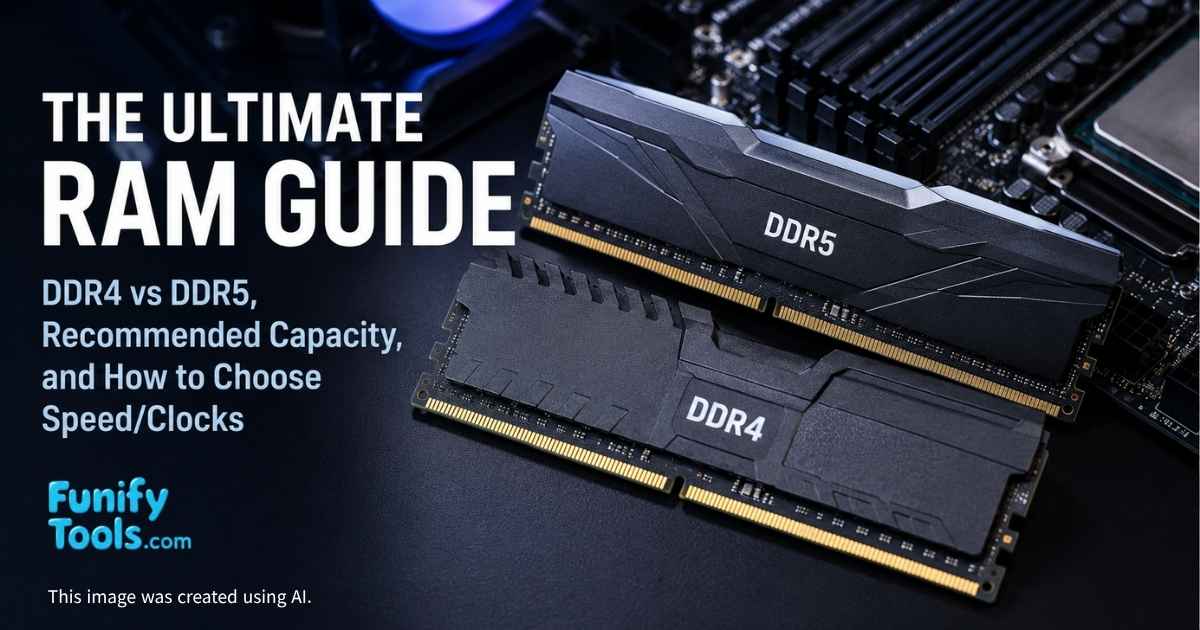
RAM (Random Access Memory) is the computer's short-term working space. When you open a browser, launch a game, edit a video, or run a coding tool, the data that needs to be accessed quickly is loaded into RAM so the CPU can work without constantly waiting on slower storage.
Storage keeps your files even when the power is off, but RAM is temporary. It clears when the system shuts down. That temporary nature is exactly what makes it fast: RAM is built for active work, not long-term archiving.
For most people, choosing RAM comes down to three practical questions: how much capacity you need, whether your platform uses DDR4 or DDR5, and what speed/latency range makes sense without paying for numbers you will barely feel.
RAM is not always the flashiest upgrade, but it often decides how comfortable a computer feels when multitasking. A system with too little memory may still boot and run, yet it can become slow the moment you open many browser tabs, a game launcher, a chat app, and a few background tools at the same time.
What RAM Actually Does
Think of RAM as the desk you work on. Storage is the bookshelf, the CPU is the person doing the thinking, and RAM is the open desk space where papers, tools, and notes are spread out for immediate use.
More RAM gives the system more working room before it has to rely on slower storage.
Faster RAM can move data more quickly between memory and the CPU.
Lower latency can reduce the delay before memory responds to a request.
When RAM runs out, the operating system starts using part of the SSD as temporary memory. This is called paging or swap. It keeps the system from crashing immediately, but even a fast SSD is much slower than RAM, so the PC may feel sluggish, stuttery, or delayed.
This is why RAM upgrades often feel most noticeable in everyday multitasking. The computer may not become dramatically faster in a single light app, but it becomes less likely to slow down when several things are happening at once.
How Much RAM Do You Need?
The right capacity depends on what you do with the computer. Buying too little creates frustration, but buying far more than you use usually does not make the system faster.
8 GB: Usable for basic web browsing, office work, and very light systems, but tight for modern multitasking.
16 GB: A practical baseline for general users, students, office work, light gaming, and everyday multitasking.
32 GB: The comfortable sweet spot for gaming plus streaming, creative work, coding, many browser tabs, and heavier multitasking.
64 GB or more: Useful for 4K/8K editing, large datasets, virtual machines, professional 3D work, heavy development environments, and local AI workflows.
If you are unsure, 16 GB is the minimum I would consider for a new everyday PC, while 32 GB is the safer choice for a system you want to keep for several years. The price difference is often easier to justify than the annoyance of running out of memory later.
Also think about your habits, not just your main app. A game may list 16 GB as recommended, but if you also keep Discord, a browser, recording software, RGB tools, and a launcher open, the real-world memory demand can be higher.
DDR4 vs DDR5
DDR4 and DDR5 are different memory generations. They are not interchangeable, so your motherboard and CPU platform determine which one you can use.
DDR4: Mature, affordable, widely available, and still perfectly usable for many budget and midrange builds.
DDR5: Newer standard with higher bandwidth, better long-term platform support, and stronger performance potential on modern systems.
DDR5 usually has higher clock speeds, but early DDR5 kits also had higher latency. Modern DDR5 has improved a lot, and on newer platforms it is often the natural choice. DDR4 remains attractive when you are building on an older platform or trying to keep total system cost low.
The important point is compatibility. A DDR4 motherboard cannot use DDR5 sticks, and a DDR5 motherboard cannot use DDR4 sticks. Before buying RAM, check the exact motherboard model and supported memory type.
Speed, Latency, and Timings
RAM specs can look intimidating because they include both frequency and latency. Frequency is usually shown as DDR4-3200, DDR5-5600, DDR5-6000, and so on. Timings may appear as numbers like CL16, CL30, or CL36.
In simple terms, speed affects how much data can be moved, while latency affects how quickly the RAM responds. Higher speed is not always automatically better if latency is also much higher, but modern CPUs usually have a practical range where performance, stability, and price line up well.
DDR4 common sweet spot: DDR4-3200 to DDR4-3600 with reasonable timings.
DDR5 common sweet spot: DDR5-5600 to DDR5-6000 for many mainstream builds, depending on CPU and motherboard support.
Extreme kits: Can be fun for enthusiasts, but may cost more, require tuning, and offer smaller real-world gains.
For most users, stable RAM at a sensible speed is better than chasing the highest number on the box. A slightly slower kit that works reliably with one click is often a better experience than a faster kit that needs manual troubleshooting.
Dual Channel, Slots, and Kits
Most consumer desktops use dual-channel memory. That means two matched sticks can provide more memory bandwidth than one stick alone. For example, 2 x 16 GB is usually better than 1 x 32 GB for a typical desktop because it lets the CPU access memory through two channels.
Motherboards usually recommend specific slots when using two sticks, often labeled A2 and B2. It is worth checking the manual because putting RAM in the wrong slots can reduce performance or cause boot issues.
Use matched kits when possible instead of mixing random sticks.
Prefer 2 sticks for mainstream dual-channel systems unless you specifically need four.
Check cooler clearance if the RAM has tall heat spreaders and you use a large air cooler.
Mixing RAM can work, but it is not guaranteed to run at the advertised speed. Different capacities, ranks, timings, and chip layouts can force the system to use slower shared settings. If stability matters, buying a single matched kit is the cleaner path.
XMP, EXPO, and Stability
Many RAM kits do not run at their advertised speed by default. They often boot at a safe standard speed first, and then you enable a memory profile in BIOS.
XMP is commonly associated with Intel memory profiles.
EXPO is AMD's profile system for DDR5 platforms.
JEDEC refers to standard baseline memory settings.
Enabling XMP or EXPO is usually simple, but it is still technically an overclock profile. If the PC fails to boot, crashes, or shows memory errors, you may need a BIOS update, a slightly lower speed, or manual adjustment.
This is another reason to check the motherboard's QVL, or qualified vendor list. It does not include every working kit in the world, but it shows memory kits the board maker has tested, which can reduce guesswork.
RAM for Different Use Cases
Office and school: 16 GB is comfortable for documents, video calls, browsing, and light multitasking.
Gaming: 16 GB works for many games, but 32 GB is becoming the better long-term choice, especially with background apps.
Video editing and design: 32 GB is a strong starting point; 64 GB helps with larger projects and higher resolutions.
Programming: 16 GB is fine for light work, while 32 GB or more is useful for Docker, virtual machines, large IDEs, and local databases.
AI and data work: Capacity matters quickly, especially when datasets, notebooks, local models, and development tools are open together.
The best RAM choice is rarely just about one application. It is about the whole working session. If your normal day includes a browser with many tabs, a game, a chat app, screen capture, music, and a few launchers, the system benefits from extra breathing room.
Pre-Purchase Checklist
Motherboard compatibility: Confirm DDR4 vs DDR5 and supported capacity.
CPU/platform support: Check the realistic memory speed range for your CPU generation.
Capacity: Choose based on your workload, not just the cheapest kit.
Kit configuration: Prefer matched 2-stick kits for mainstream desktops.
XMP/EXPO profile: Make sure the profile matches your platform and comfort level.
Physical clearance: Check RAM height if using a large CPU air cooler.
Upgrade plan: Leave slots or capacity headroom if you expect heavier work later.
One practical tip: if you think you will eventually need 64 GB, it may be cleaner to buy 2 x 32 GB now rather than 2 x 16 GB and hope to add another mismatched kit later. Matching memory is not always exciting, but it makes stability much easier.
Quick Buyer's Map
Basic PC: 16 GB DDR4/DDR5, depending on platform.
Gaming sweet spot: 32 GB, ideally as a matched 2-stick kit.
Creator workstation: 32-64 GB, with more if projects are large.
Heavy multitasking, VMs, AI: 64 GB or more depending on the workload.
If the budget is tight, prioritize capacity first, then reasonable speed. Running out of RAM is usually more painful than using a slightly slower kit. Once you have enough capacity, then speed and latency become the fine-tuning step.
Wrapping Up
RAM is the workspace your computer uses while it is actively thinking. Enough memory keeps multitasking smooth, matched sticks improve bandwidth, and the right DDR generation keeps the build compatible with your motherboard and CPU.
For most modern builds, 16 GB is the practical floor and 32 GB is the comfortable recommendation. Go higher when your work genuinely needs it: editing, development, virtual machines, local AI, or large creative projects.
Next up: Storage — how SSDs and HDDs differ, what NVMe really means, and how to choose a drive that fits your speed, capacity, and budget.
This article is also available in Korean: Read the Korean version