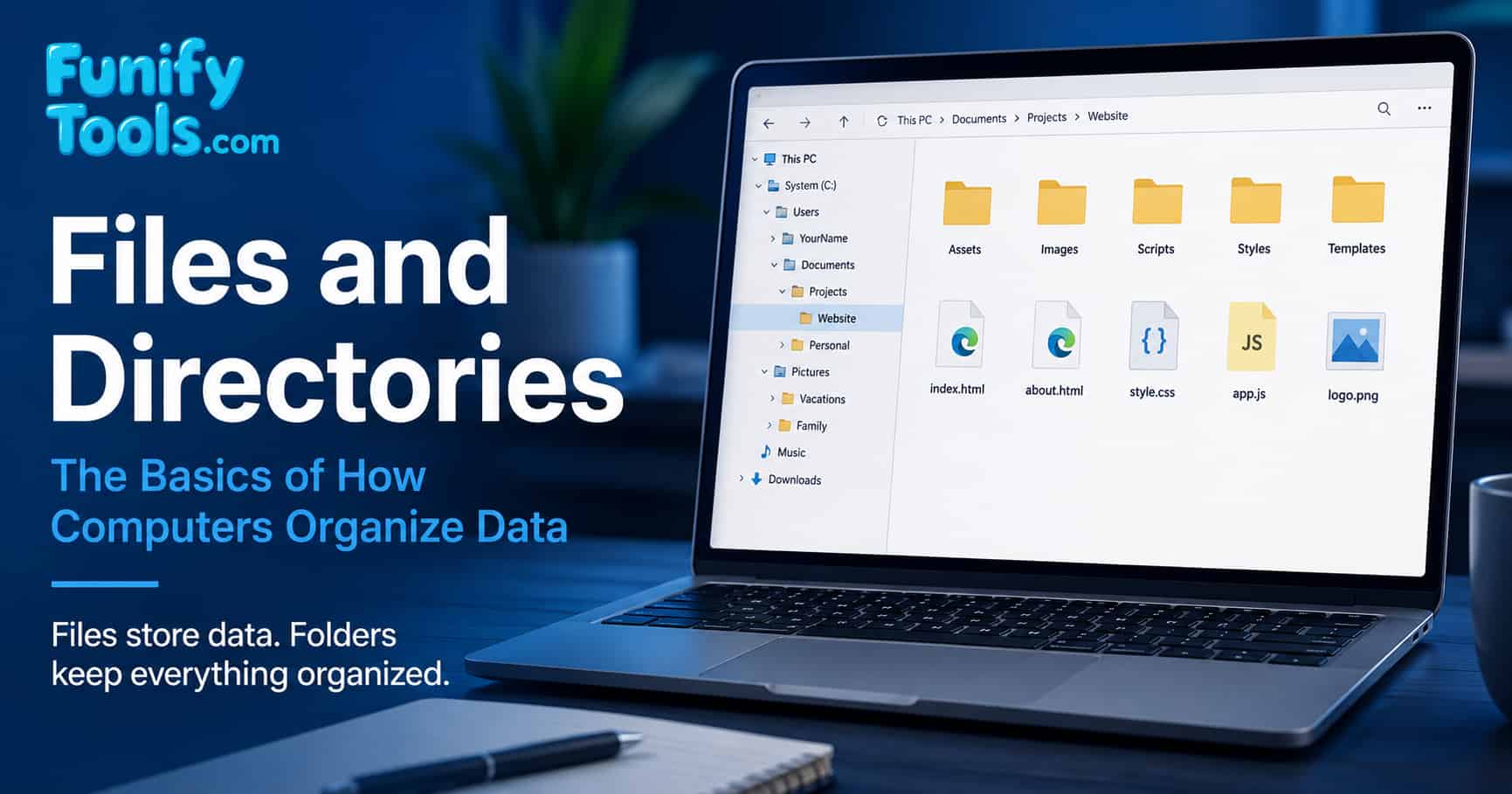
All data on a computer lives in files—the units you open, save, move, and share.
Directories (folders) organize those files into a tidy tree, from a single root down to many subfolders.
The OS keeps it all straight via a file system (e.g., NTFS, APFS, ext4), tracking names, locations, sizes, and dates.
In the previous post, we explored the concept of program installation. We learned that installing a program isn’t just copying files—it’s a process where the operating system recognizes and registers the program so it can be executed.
This time, let’s take a look at something even more fundamental in the world of computers: files and directories.
These two ideas may sound too basic at first, but they are the foundation of almost everything we do on a computer. When you save a photo, download a PDF, install an app, organize music, write a document, or back up a folder, you are working with files and directories.
If you understand this structure clearly, many other computer concepts become easier later: file extensions, compressed files, installation paths, shortcuts, cloud storage, backups, and even programming projects.
It is a bit like learning how drawers, shelves, and labels work before trying to organize a whole room. Once the basic structure makes sense, the computer no longer feels like a mysterious place where things simply appear and disappear. You begin to understand where your data is, why it opens in certain places, and what happens when you move it somewhere else.
What Is a File?
All data handled by a computer is ultimately stored as a file—a container that holds information such as documents, photos, music, videos, or even programs themselves. A Word report, a photo from your phone, and an MP3 track are all files. It’s the everyday unit you open, close, move, and save.
A file can be very small, like a short text note, or very large, like a high-resolution video. It can be something you created yourself, something downloaded from the internet, or something the operating system uses behind the scenes.
From a user’s point of view, a file usually has a name and an icon. From the computer’s point of view, it is data stored somewhere on a storage device. The operating system remembers where that data is and shows it to us in a form we can recognize.
This is why files are so important. They are the basic “things” that computers store. Without files, there would be no documents to open, no photos to view, no programs to run, and no settings to save.
A file also usually has details attached to it. You may see its size, when it was created, when it was last modified, and sometimes who owns it or which app should open it. These details are not the main content of the file, but they help the operating system manage the file properly.
For example, two photos may look similar in a folder, but one might be 500 KB and the other 8 MB. That size difference tells you something about resolution, quality, or compression. A document may have the same title as another document, but the modified date can help you find the latest version. These small clues are part of how we work with files every day.
Why We Need Directories (Folders)
Files alone aren’t enough. With thousands of files mixed together, finding anything would be painful. That’s where directories (a.k.a. folders) help: they’re boxes that organize files into meaningful groups so you can find what you need quickly.
Imagine throwing every paper document, photo, receipt, school note, and manual onto one desk. Technically, everything is there, but finding one specific item would be exhausting. A folder solves that problem by grouping related things together.
Computers work the same way. A “Pictures” folder can hold photos. A “Documents” folder can hold reports. A “Downloads” folder can hold files from the internet. Inside each one, you can create more folders to organize things even further.
This is not only about neatness. Good folder organization saves time and prevents mistakes. If project files, personal photos, and system files are all mixed together, it becomes much easier to delete the wrong thing or lose track of important data.
Directories also help give files context. A file named final.pdf is not very informative by itself. But if it is inside Documents\School\History\Assignment, you immediately know what it probably belongs to. The folder path becomes part of the meaning of the file.
This is why naming folders clearly is just as important as naming files clearly. A folder called New Folder (12) does not help much later. A folder called 2025-Tax-Documents, Vacation-Photos, or Website-Project gives your future self a much better chance of finding things quickly.
The Tree Structure
Directories can contain other directories, forming a tree. At the top sits the root, with many branches beneath:
- Windows: Typically the C: drive as root, with folders like Program Files, Users, and Windows.
- Everyday organizing: e.g., a “My Pictures” folder with subfolders Travel, Family, and School to find images faster later.
The tree structure is easy to understand if you picture a real tree upside down. The root is the starting point, and each folder becomes a branch. A folder can contain files, but it can also contain more folders, creating deeper levels.
For example, a photo might be stored in a path like C:\Users\Jay\Pictures\Travel\Japan\photo01.jpg on Windows. That path tells you the route from the drive to the final file. Each backslash is like moving one step deeper into another folder.
On macOS or Linux, paths usually use forward slashes instead, such as /home/jay/Pictures/Travel/photo01.jpg. The symbol is different, but the idea is the same: a path describes where a file lives in the directory tree.
Once you understand paths, many computer messages become less confusing. When an app says it cannot find C:\Users\Jay\Downloads\installer.exe, it is not speaking in a strange code. It is simply saying that it expected a file at that exact location, but the file is not there anymore or the path has changed.
This also explains why moving a file can sometimes break a shortcut or a recently opened file link. The file itself may still exist, but it is no longer in the location where the app expected it to be. The path changed, so the app needs to be pointed to the new place.
How the OS Manages Files
The operating system tracks where files live, their names, sizes, and last-modified dates using a file system:
- Windows: NTFS
- macOS: APFS
- Linux: ext4
Names differ, but the goal is the same: to organize and manage data efficiently.
A file system is like the library catalog of your storage device. It does not only store the contents of files. It also keeps track of metadata such as file names, folder locations, file sizes, permissions, creation dates, and modification dates.
When you open a folder, the OS asks the file system what is inside. When you rename a file, move it, copy it, or delete it, the file system updates its records. This happens so quickly that we rarely think about it.
This is also why safely ejecting external drives matters. If the operating system is still writing file system information and you unplug the device suddenly, data can become corrupted. The file may exist physically, but the system’s record of it may become incomplete.
The file system also helps control access. Some folders belong to the operating system, some belong to a specific user, and some may require administrator permission to modify. This is why you can freely edit files in your personal Documents folder, but changing files inside system folders may require extra approval.
Permissions can feel annoying at first, but they protect the computer from accidents. If every app could change every file freely, one broken or malicious program could damage important data. By managing ownership and permissions, the OS creates boundaries around files and folders.
Copying, Moving, and Deleting
Basic file operations become clearer once you know the difference between files and directories. When you copy a file, the original stays where it is and a second copy is created somewhere else. When you move a file, the file is relocated to another folder or drive. When you delete a file, the operating system usually removes it from its current location and may place it in the Recycle Bin or Trash first.
These actions may look simple, but they mean different things. Copying is useful when you want a backup or a duplicate. Moving is useful when you are reorganizing. Deleting is useful when you no longer need something, but it should be done carefully because deleted files are not always easy to recover.
There is also a difference between moving a file within the same drive and moving it to another drive. Within the same drive, the file system may only need to update the file's location record. Across different drives, the computer usually copies the data to the new drive and then removes the original. That is why large files can take longer to move to a USB drive or external SSD.
Understanding this helps explain why a folder transfer may take seconds in one case and several minutes in another. The amount of data, the storage speed, the connection type, and whether the files are being copied or moved all matter.
You Already Use This—Every Day
On your phone, the photo gallery’s albums and a music app’s playlists are the same idea: files grouped into folders. A file is the basic unit of data; a directory is the container that keeps things tidy.
Even cloud services follow the same basic concept. Google Drive, OneDrive, iCloud Drive, and Dropbox all show files and folders because the model is familiar. The files may physically live on remote servers, but the way we organize them still feels like using folders on a computer.
Cloud storage can make the idea slightly harder to see because files may appear on your computer even when the full data is stored online. Some services show placeholder files that download only when you open them. This is still based on the same file-and-folder model, but the actual storage location may be split between your device and the cloud.
This is why syncing matters. If a cloud folder has not finished syncing, a file may exist on one device but not yet appear on another. The folder structure looks simple, but behind the scenes the service is checking changes, uploading files, downloading updates, and resolving conflicts.
Programming projects also rely heavily on directories. Source code files may go in one folder, images in another, stylesheets in another, and configuration files somewhere else. A clean directory structure makes a project easier to understand and maintain.
That is why learning files and directories is not only useful for everyday computer use. It is also one of the first steps toward understanding how software projects, websites, and operating systems are organized.
Good Habits for Organizing Files
You do not need a perfect system to manage files well. A few simple habits are enough. Use folder names that describe what is inside. Keep related files together. Avoid saving everything permanently in Downloads. Create separate folders for important projects, documents, photos, and backups.
It also helps to use dates consistently when they matter. For example, 2025-09-report.pdf or 2025-09-25-meeting-notes.txt sorts more clearly than vague names like new report final final2.pdf. Clear names reduce confusion, especially when you come back to the file months later.
Another useful habit is to keep original files separate from edited versions. If you edit photos, videos, documents, or code, saving a copy before making major changes can prevent accidental loss. Folders are not only for storage; they are also a simple way to protect your workflow.
Wrapping Up
- Everything on a computer is made of files.
- Directories organize those files into a searchable structure.
- The OS + file system manage names, locations, sizes, and dates behind the scenes.
- A file path tells you where a file is located inside the directory tree.
- Copying, moving, deleting, syncing, and backing up all depend on this same basic structure.
Understanding files and directories is a foundational step that makes later concepts much easier to grasp.
Once you know that files are the stored data and directories are the structure that organizes them, many computer behaviors start to make more sense. Saving, moving, copying, deleting, installing, backing up, and syncing all depend on this basic idea.
In the next post, we’ll explore file extensions.
This article is also available in Korean: Read the Korean version