In the previous post, we explored files and directories. We learned that every piece of data on a computer is stored as a file, and directories act like boxes that organize those files. But if you look more closely at a file’s name, you’ll often notice a period followed by a few letters. This is called a file extension.
At first, file extensions may look like a small detail. They are just a few letters at the end of a name, so it is easy to ignore them. But once you understand what they do, file extensions become one of the simplest ways to understand how a computer recognizes and handles files.
For many beginners, extensions are one of those things that are always present but rarely explained. You may have downloaded a file called setup.exe, saved a document as homework.docx, or received an image named profile.png without thinking much about the letters after the dot. Yet those letters quietly tell the computer what kind of file it is looking at.
In this post, we’ll take a closer look at file extensions: what they mean, why they matter, how they connect files to apps, and why showing them can also help with security.
What Is a File Extension?
A file extension is a short suffix at the end of a filename (after the dot) that identifies the file type and hints which app can open it. For example:
-
report.docx→ Microsoft Word document -
photo.jpg→ Image file -
song.mp3→ Audio file
Think of extensions like tags on a blog post: they label content for both you and the computer, signaling whether something is a document, picture, song, or even a program.
The extension does not contain the whole file. It is more like a label on the outside. The actual data is inside the file, but the extension gives the operating system a quick clue about how that data should be treated.
For example, if a file ends in .jpg, the computer expects image data. If it ends in .mp3, the computer expects audio data. If it ends in .exe, Windows treats it as a program that can run. That small label changes what the operating system tries to do when you double-click the file.
This is similar to seeing a label on a box before opening it. If the label says "photos," you expect pictures inside. If it says "documents," you expect papers. The label may not tell you every detail, but it gives you enough information to choose the right tool. File extensions work in the same practical way.
It is also worth noticing that the dot is part of the naming convention. In family-photo.jpg, the main filename is family-photo, and the extension is .jpg. Some files may have longer extensions, such as .jpeg, .html, or .xlsx. Others may use very short ones, such as .c for a C programming source file.
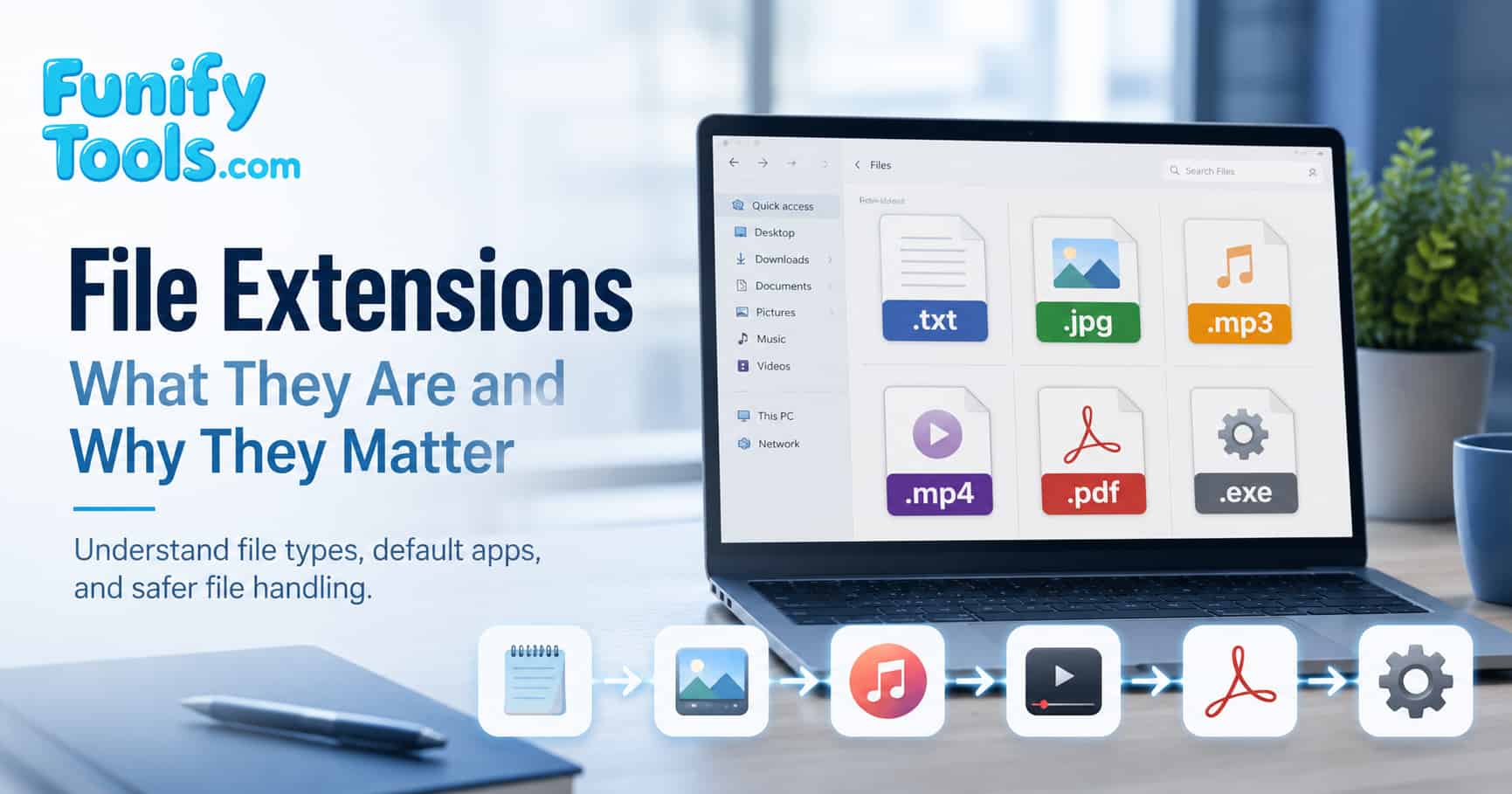
Common Extensions (Quick Glance)
-
.txt— plain text -
.jpg— image (photo) -
.mp3— audio -
.mp4— video -
.pdf— portable document -
.exe— executable program (Windows)
There are many more extensions, of course. .png is another common image format, often used when transparency is needed. .html is a web page file. .css is used for website styling. .js is JavaScript code. .zip is a compressed archive. Each extension tells a small story about what kind of file you are dealing with.
This is especially helpful when two files have similar names. A file named project.pdf is probably something you read or print. A file named project.zip is probably a package you need to extract. A file named project.exe is something that may run as a program. The base name is the same, but the extension changes the meaning.
Some extensions also point to how a file is normally used. A .csv file often contains table-like data that can be opened in spreadsheet programs. A .pptx file is usually a presentation. A .json file is commonly used by apps and websites to store structured data. If you start learning programming later, you will see extensions even more often because source code files are usually organized by language: .py for Python, .java for Java, and .cpp for C++.
There can also be multiple extensions that describe similar kinds of files. For images, .jpg, .jpeg, .png, .gif, and .webp are all common, but they are not identical. Some are better for photographs, some are better for graphics with transparency, and some are designed for smaller web images. The extension gives you the first clue before you even open the file.
How Extensions Link Files to Apps
Operating systems associate extensions with default apps—for instance, .docx files open in Word and .jpg in Photos on Windows. You can change these associations at any time (e.g., set .jpg to open in Photoshop by default).
This is why double-clicking a file usually opens the “right” program automatically. You do not need to manually tell the computer which app to use every time. The operating system checks the extension, looks up the default app for that extension, and sends the file there.
However, the extension and the default app are not the same thing. A .jpg file can be opened by Photos, Photoshop, Paint, a browser, or many other image viewers. The extension describes the file type, while the default app is simply the program currently assigned to open it.
This also explains why changing the default app does not change the file itself. If you set PDF files to open in a different reader, the PDF files remain PDF files. Only the app used to open them changes.
This becomes useful when a file opens in an app you do not prefer. Maybe every PDF opens in a web browser, but you want it to open in a dedicated PDF reader. Or maybe images open in a basic viewer, but you want them to open in an editor. In that case, you are not editing the file extension. You are changing the file association, which is the operating system's rule for what app should handle that extension.
Different operating systems handle this idea in slightly different ways, but the basic concept is the same. Windows, macOS, Linux, Android, and iOS all need some way to decide which app should open which file. The extension is one of the most common clues used in that decision, especially on desktop systems.
Show Extensions (Helpful Habit)
Windows hides extensions by default, which can be confusing. Enable them so you always see the real type (in Windows 11: File Explorer → View → Show → File name extensions). It’s a small change that makes file management clearer.
When extensions are hidden, a file named invoice.pdf.exe may appear as if it is just invoice.pdf, depending on the settings and icon. That can trick users into thinking the file is a document when it is actually a program.
Once extensions are visible, file names become more honest. You can immediately see whether something is a document, an image, a compressed archive, or an executable file. This is one of those small settings that makes a computer feel much easier to understand.
If you often download files, manage school assignments, send work documents, or organize photos, showing extensions can save a surprising amount of confusion. It helps you notice why one file uploads correctly while another does not, why a file cannot be attached to a certain form, or why a document looks different after being exported.
For example, a website might ask you to upload an image file and only accept .jpg or .png. If extensions are visible, you can quickly check whether your file is actually an image or whether it is something else, such as a .heic photo from a phone or a .webp image downloaded from the web.
Can You Change a File Extension?
You can rename a file extension, but that does not always convert the file. This is a very common beginner misunderstanding.
For example, renaming photo.jpg to photo.png does not magically turn the image into a real PNG file. The actual data inside the file is still the same. The label changed, but the contents did not. Some programs may still open it, but others may become confused or reject it.
To truly convert a file, you usually need software that reads the original file and saves it in a different format. For example, an image editor can open a JPG and export it as PNG. A document editor can open a DOCX file and export it as PDF. Renaming is not the same as converting.
A simple way to remember this is: renaming changes the name, converting changes the contents. If you rename a notebook cover, the pages inside do not change. In the same way, if you rename video.mp4 to video.mp3, you have not extracted the audio. You have only given the file a misleading name.
There are some cases where changing an extension is part of a normal workflow, but those cases usually depend on knowing the file format already. For everyday users, it is safer to use an app's export, save as, or convert feature instead of manually editing the extension.
Security Tip
Malware sometimes disguises itself with misleading names or icons. Watching the actual extension (e.g., noticing .exe vs. .jpg) helps you avoid running dangerous files. Keeping extensions visible is one of the simplest safety practices.
This does not mean every .exe file is bad. Many normal programs use .exe. The point is that executable files can run instructions on your computer, so you should be more careful with them, especially if they came from an unknown email, random download link, or suspicious message.
Also be careful with double extensions such as document.pdf.exe, photo.jpg.scr, or invoice.docx.bat. Attackers sometimes use names like these to make a dangerous file look harmless. If extensions are visible, these tricks become easier to spot.
It is a good habit to pause before opening files from unfamiliar sources, especially files that can execute commands. On Windows, extensions such as .exe, .bat, .cmd, .msi, and .scr deserve extra attention. They are not automatically dangerous, but they can perform actions on your system.
Documents can also carry risks if they contain macros or embedded scripts, so extensions are only one part of security. Still, they are a very visible first check. If the extension does not match what you expected, it is better to stop and verify the source before opening it.
Why Extensions Still Matter Today
Modern apps often hide technical details to make computers easier to use. Phones may show a photo thumbnail instead of a filename. Cloud storage may show icons and previews. Messaging apps may let you tap a file without thinking about its format. This convenience is helpful, but extensions still matter underneath.
When something goes wrong, the extension often becomes the first clue. If a video will not play, you may check whether it is .mp4, .mov, or .mkv. If a document will not open, you may check whether it is .docx, .pdf, or .pages. If an upload fails, the website may be rejecting the extension because it only allows certain file types.
Understanding extensions also makes it easier to communicate with others. Instead of saying "the file does not work," you can say "I received a .zip file and need to extract it," or "the website asks for a .jpg, but my phone saved the photo as .heic." That small bit of vocabulary makes troubleshooting much faster.
Summary
- Extensions label what kind of file something is.
- They connect files to the right applications.
- Visible extensions improve safety and efficiency.
- Renaming an extension is not the same as converting the file.
- Knowing common extensions makes downloading, uploading, organizing, and troubleshooting files easier.
Just like .txt means text, .jpg means image, and .mp3 means music, understanding extensions clarifies how computers handle files.
Once you start paying attention to extensions, file management becomes much less confusing. You can tell what kind of file you are looking at, choose the right app more easily, avoid simple mistakes, and notice suspicious files before opening them.
It is a small detail, but it is one of the basic habits that makes using a computer safer and more comfortable.
This article is also available in Korean: Read the Korean version