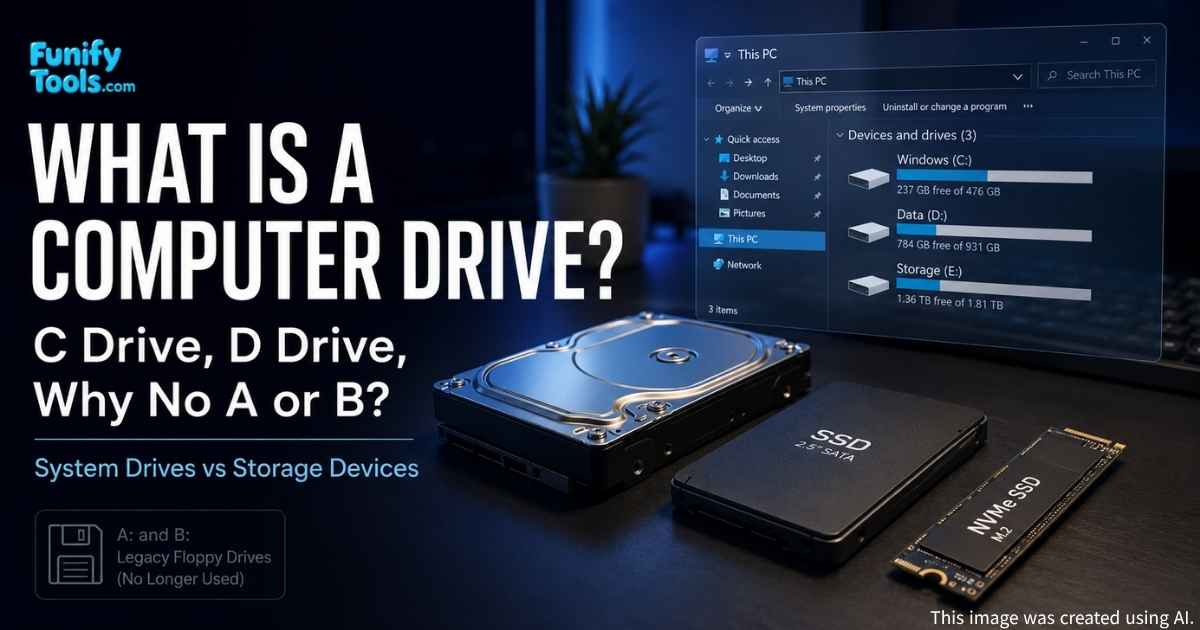
In Windows, storage devices like HDDs and SSDs are represented as drives (C:, D:, etc.), which act as user-friendly containers for your data.
The C drive typically holds Windows and installed apps, while a D drive (partition or second disk) is often used for personal files.
Drive letters start at C due to legacy A/B assignments for floppy disks—and the convention stuck.
Letters can be reassigned (except C:) via Disk Management; removable USBs usually appear as E:, F:, and so on.
Beyond physical disks, Windows can expose virtual and cloud locations (ISO mounts, OneDrive) as drives for easy access.
In previous posts, we looked at files, directories, extensions, and compressed files to understand how computers handle data. But an important question still remains: Where are these files actually stored? Whether it’s text written in Notepad or a drawing made in Paint, all of that data must ultimately be recorded on a storage device. And in the Windows operating system, the unit used to represent and manage these storage devices is called a drive. Today, let’s take a closer look at what drives are and why they matter.
For beginners, the word "drive" can be confusing because it is used in a few different ways. Sometimes it means a physical device, like an SSD or external hard drive. Sometimes it means a letter in Windows, like C: or D:. Sometimes it even means a virtual or cloud location that behaves like storage. The key is to remember that a drive is how the operating system presents storage to you in a way that is easy to browse.
Once you understand drives, File Explorer starts to make more sense. You can tell where Windows is installed, where personal files are stored, which device is a USB stick, and why some folders should not be deleted casually. It is a small concept, but it makes everyday computer management much less intimidating.
Drives as Storage Units
Every file—documents, photos, music, videos—must be stored somewhere. What you see on the screen is only an icon; the real content is saved on physical storage devices such as HDDs (hard disk drives) or SSDs (solid-state drives). To make this easier for users, Windows assigns each storage area a letter of the alphabet, which we call a drive. Think of a drive as a large drawer or cabinet inside your computer where your data is kept.
A drive letter is not always the same thing as a separate physical disk. One SSD can be divided into C: and D: using partitions, or two completely separate disks can appear as C: and D:. To the user, both setups look similar in File Explorer, but inside the computer they are different.
This is why storage capacity can be confusing at first. If C: is almost full but D: has plenty of space, your computer may still complain during Windows updates or app installs, because many system tasks specifically need room on C:. The drive letter tells you not only how much storage exists, but where that storage is available.
C Drive: The Heart of the Computer
When you open File Explorer, the first thing you’ll usually see is the C drive. This is the main storage space and, in most cases, the drive where the Windows operating system is installed. Inside the C drive are critical Windows system files and most of the programs you install. That’s why the C drive is more than just storage—it’s like the heart of your computer, and it’s the first place the system looks when booting up.
Because the C drive holds Windows, you should treat it with a little extra care. Folders like Windows, Program Files, and Users are not random clutter. They contain system files, installed apps, account data, desktop files, downloads, and application settings. Deleting things from these folders without knowing what they are can break programs or cause Windows to behave strangely.
A healthy C drive also needs free space. Windows updates, temporary files, browser caches, and app installers all need room to work. If the C drive becomes nearly full, the computer may slow down, updates may fail, and apps may have trouble saving data. Keeping some breathing room on C: is one of the simplest ways to avoid everyday trouble.
D Drive: Secondary Storage
Many computers also have a D drive (though not always, depending on the setup). Sometimes the C and D drives come from dividing one physical disk into two partitions. In other cases, the D drive is a completely separate storage device, like a second HDD or SSD. A common setup is to install the operating system and applications on the faster SSD (C drive) and use a larger HDD (D drive) for storing photos, music, videos, and personal documents. This separation is practical—if you ever need to reinstall Windows, you can format the C drive without losing personal data stored on the D drive.
For day-to-day use, a D drive is often a good place for large personal libraries: videos, game recordings, project files, backups, downloaded installers, and old photos. This keeps the C drive cleaner and makes it easier to understand what belongs to the system and what belongs to you.
Still, a D drive is not automatically a backup. If C: and D: are just two partitions on the same physical disk, and that disk fails, both can disappear together. Even if D: is a separate internal drive, it is still inside the same computer. Truly important files should also live on an external drive, NAS, or cloud backup.
Why Do Drive Letters Start at C?
You may have noticed that Windows drives always start with C—but why not A or B? This tradition comes from the early days of computing. Decades ago, before hard drives were common, computers used floppy disks for storage. The large 5.25-inch floppies were assigned as the A drive, and the smaller 3.5-inch floppies as the B drive. Later, when hard drives became standard, they were simply labeled starting with the next letter: C. That convention has stayed with us ever since.
Most modern users never touch a floppy disk, but the naming tradition remains because changing it would break old assumptions and confuse existing software. Computers carry a surprising amount of history in small details like this. C: is not technically magical; it is just a convention that became deeply rooted.
Changing Drive Letters
Drive letters may look permanent, but they can actually be changed. For example, when you plug in a USB flash drive, Windows usually assigns it a letter like E or F. With Windows’ Disk Management tool, you can manually reassign drive letters. However, you should never change the C drive because the operating system and many programs depend on it being fixed at C. Altering it can cause serious stability problems.
Changing letters can be useful for external drives. For example, if you always want a backup drive to appear as B: or X:, assigning a fixed letter can help backup software find it consistently. It can also help if two removable drives keep switching letters and confusing shortcuts or scripts.
Before changing a drive letter, think about anything that may already depend on it. Shortcuts, game libraries, media software, project files, and backup tools may remember paths like D:\Games or E:\Photos. If the letter changes, those programs may need to be pointed to the new location.
Virtual and Cloud Drives
Today, drives aren’t limited to physical devices. Virtual drives also exist. For example, when you mount an ISO disk image, Windows creates what looks like a new drive even though there’s no physical disk. Similarly, cloud storage like OneDrive can appear as a drive in File Explorer, giving you easy access to files stored on the internet. This shows that a drive is not just a physical device but really an addressing system the operating system uses to manage data.
This is why you might see a new drive appear after opening an ISO file, connecting a phone, plugging in a camera card, or installing cloud sync software. The system is giving you a familiar way to browse something that may not be a normal internal disk.
Cloud drives are convenient, but they deserve a small warning: files may look local even when they are actually stored online and downloaded only when opened. That can save disk space, but it also means you may need an internet connection to access some files. If a file is important for travel or offline work, make sure it is available locally.
Wrapping Up
We’ve now explored what drives are, why C and D exist, and why A and B are missing. Understanding these rules helps you know where your files are saved and how the computer organizes storage. Once you grasp this, using and managing your computer becomes much easier and more enjoyable.
In simple terms, a drive is the computer's labeled storage space. C: usually means the system drive, D: often means extra storage, and removable or virtual drives appear with later letters. Behind those letters may be one physical disk, several disks, partitions, USB devices, mounted images, or cloud folders.
The practical advice is simple: keep C: from getting too full, store large personal files in a clear location, do not treat a second partition as a real backup, and be careful when changing drive letters. These habits make it much easier to manage files without accidentally disturbing the operating system.
Thank you for reading! In the next post, we’ll take a look at executable files and how they work.
This article is also available in Korean: Read the Korean version