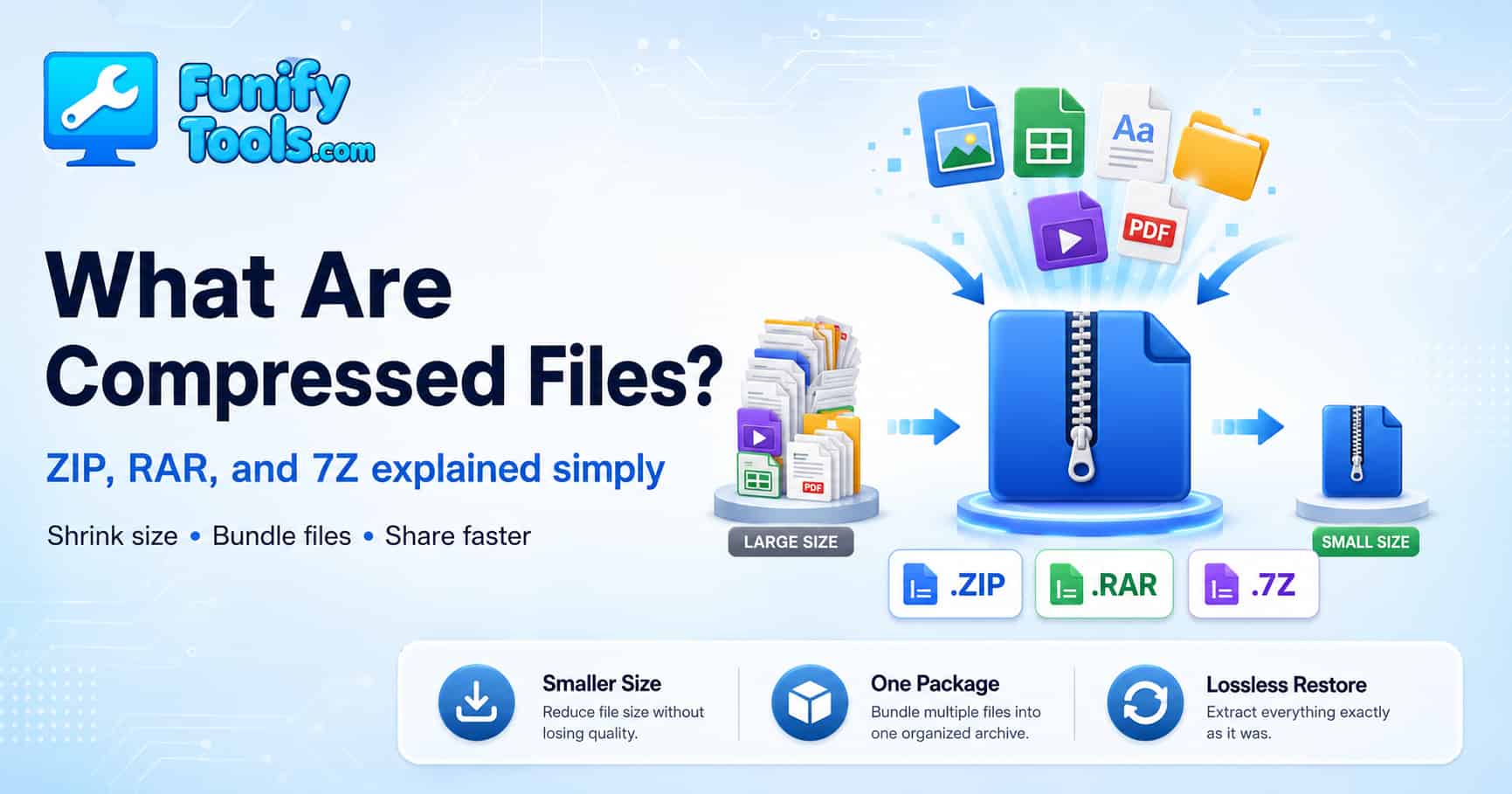
Compressed files (like
.zip,.rar,.7z) shrink data size and bundle many items into a single package, making storage and sharing easier.They’re lossless: when you extract them, you get the exact originals back. Windows can handle basic ZIPs natively, while tools such as 7-Zip, WinRAR, and ALZip add power and formats.
Knowing common extensions and the right tool helps you move files faster, stay organized, and avoid headaches with big transfers.
In the last post, we looked at file extensions. This time, let’s talk about compressed files—those that end with extensions like .zip, .rar, or .7z.
If you have ever downloaded a driver, received a folder of photos, backed up a project, or shared many documents at once, you have probably seen a compressed file. At first, it may look like just one file. But inside, it can contain many files and folders neatly packed together.
Compressed files are useful because they solve two common problems at the same time: files can be too large, and many separate files can be messy to send. Compression makes the data smaller when possible, and archiving turns many items into one convenient package.
File Size Basics
One of the first things we check when dealing with files is their size. File size represents how much space the file takes up on a storage device, measured in bytes (B). The units scale upward from KB (kilobyte), MB (megabyte), GB (gigabyte), to TB (terabyte). In Windows, right-click a file and select Properties to see its exact size.
For a small text file, size usually does not matter much. But once you start dealing with photos, videos, design files, game files, or large project folders, file size quickly becomes important. A few documents may fit inside an email easily, but a folder full of high-resolution images can become hundreds of megabytes or even several gigabytes.
This is where compression becomes practical. If the file can be represented more efficiently, compression reduces the amount of space it needs. Even when the size reduction is not huge, bundling many files into one archive can make sharing much easier.
Why Compress?
Large or numerous files are inconvenient to send or store. Compression bundles multiple files into one while reducing their size—like vacuum-sealing bulky clothes. Smaller bundles save storage and transfer faster, and they keep related items together for easier organization.
Imagine sending 200 photos one by one. Even if each photo is not too large, managing all those separate files is annoying. It is easy to miss one, upload them in the wrong order, or make the receiver download them individually. If you compress the whole folder into one ZIP file, the receiver only has to download one file and extract it.
Compression is also useful for backups. If you want to save a project folder from last year, turning it into one archive makes it easier to store, move, and label. Instead of many loose files scattered around, you get one package with a clear name.
There is one important detail, though: not every file compresses equally well. Plain text, code, spreadsheets, and some document formats can shrink a lot. Photos, videos, MP3 files, and many modern media formats are often already compressed, so putting them into a ZIP file may not reduce the size very much. In those cases, the archive is still useful as a bundle, even if it does not save much space.
A Brief History
In the 1980s–1990s, storage was tiny and internet speeds were slow, so tools like PKZIP were essential to fit more data on disks and speed up transfers. Even today—with faster internet and bigger drives—compression remains a staple for efficient sharing and neat packaging.
Back then, saving a few megabytes could make a real difference. Floppy disks had very limited capacity, hard drives were expensive, and downloading files could take a long time. Compression was not just convenient. It was often necessary.
Today, storage is much cheaper and internet speeds are much faster, but the need has not disappeared. We still send attachments, upload folders, distribute software, back up data, and move files between devices. Compression survived because it is not only about making things smaller. It is also about making files easier to handle.
Extracting (Decompression)
To use compressed files, you extract them. The data is restored to its original state through lossless algorithms, so the extracted files are identical to the originals—no quality loss.
This is different from compressing a photo or video by lowering quality. Archive formats like ZIP, RAR, and 7Z are usually used for lossless compression. That means a document, program file, image, or folder should come back exactly as it was before compression.
That exact restoration is important. If you compress a program installer, source code, financial document, or backup folder, even one changed byte could matter. Lossless compression protects the original data while still trying to store it more efficiently.
When you extract an archive, it is usually better to extract it into a folder rather than opening files directly inside the compressed file. Some programs can preview files inside an archive, but the safest habit is to extract first, then work with the extracted folder.
Popular Tools
Windows supports basic ZIP compression/extraction out of the box. For advanced features or higher ratios, use:
- 7-Zip — free, powerful, widely used.
- WinRAR — strong compression and split archives.
-
ALZip — popular in Korea with its own
.alzformat.
For most everyday situations, the built-in ZIP support in Windows or macOS is enough. If someone sends you a simple ZIP file, you can usually open or extract it without installing anything extra.
But dedicated tools become useful when you deal with formats like RAR or 7Z, very large archives, password-protected files, split archives, or archives that need stronger compression. 7-Zip is especially popular because it is free and handles many formats. WinRAR is well known for RAR files and long-time Windows users will recognize it immediately.
One thing beginners sometimes misunderstand is that the tool and the format are not always the same thing. For example, 7-Zip is a program, while .7z is a file format. WinRAR is a program, while .rar is a file format. A good archive program can often open several different archive formats.
Common Archive Formats
-
.zip— most common and highly compatible (Windows/macOS). -
.rar— strong compression and advanced features. -
.7z— open-source, efficient, flexible. -
.tar.gz— common on Linux (TAR for bundling, Gzip for compression).
Extensions hint at which tool you’ll need, so always check them before extracting.
.zip is usually the safest choice when you need maximum compatibility. If you are sending files to someone and you do not know what software they have, ZIP is often the easiest option.
.rar and .7z can be useful when you want better compression or extra features. .7z often performs very well for certain kinds of files, while RAR is common in some file-sharing and backup workflows. The best format depends on whether you care more about compatibility, compression ratio, speed, or features.
.tar.gz looks a little different because it combines two ideas. TAR bundles many files into one archive, and Gzip compresses that archive. This is why it is common in Linux and server environments. It may look unfamiliar to Windows beginners, but it is very normal in developer and Linux communities.
Split Archives and Passwords
Sometimes you may see files like archive.part1.rar, archive.part2.rar, or several numbered ZIP files. These are called split archives. They divide one large archive into smaller pieces so it can be uploaded, downloaded, or stored more easily.
With split archives, you usually need all parts in the same folder before extracting. If even one part is missing or corrupted, extraction may fail. This is why large downloads often include several archive parts and sometimes a checksum file to verify that everything arrived correctly.
Archives can also be password-protected. This can be useful when sending private files, but it is not magic protection. Use a strong password, share it through a separate channel, and remember that forgetting the password may make the archive impossible to open.
Safety Tips Before Extracting
Compressed files are convenient, but they should still be handled carefully. Because an archive can hide many files inside, you should be cautious when downloading one from an unknown source.
Before extracting, check where the file came from. After extracting, look at the file extensions. Be especially careful with executable files such as .exe, scripts, or suspicious shortcuts. A ZIP file itself is not automatically dangerous, but the files inside it can be.
It is also a good habit to extract unknown archives into a separate folder first. That way, the contents do not scatter across your desktop or mix with important files. If something looks strange, you can delete the whole extracted folder more easily.
Wrap-Up
Compressed files help you store less, send faster, and stay organized by shrinking data and bundling many items into one. From the early days of tiny disks to today’s fast networks, compression has remained a core skill. With ZIP, RAR, and 7Z in your toolkit, you can handle files more efficiently—even as a beginner.
The most important thing is to understand the basic idea. A compressed archive is a package. Sometimes it saves a lot of space, sometimes it mainly keeps files together, and sometimes it does both. When you know the format, choose the right tool, and extract files safely, compressed files become much less confusing.
So the next time you see a ZIP, RAR, or 7Z file, you do not need to treat it as something mysterious. Think of it as a neatly packed box. Open it with the right tool, check what is inside, and use the contents after extracting them properly.
This article is also available in Korean: Read the Korean version