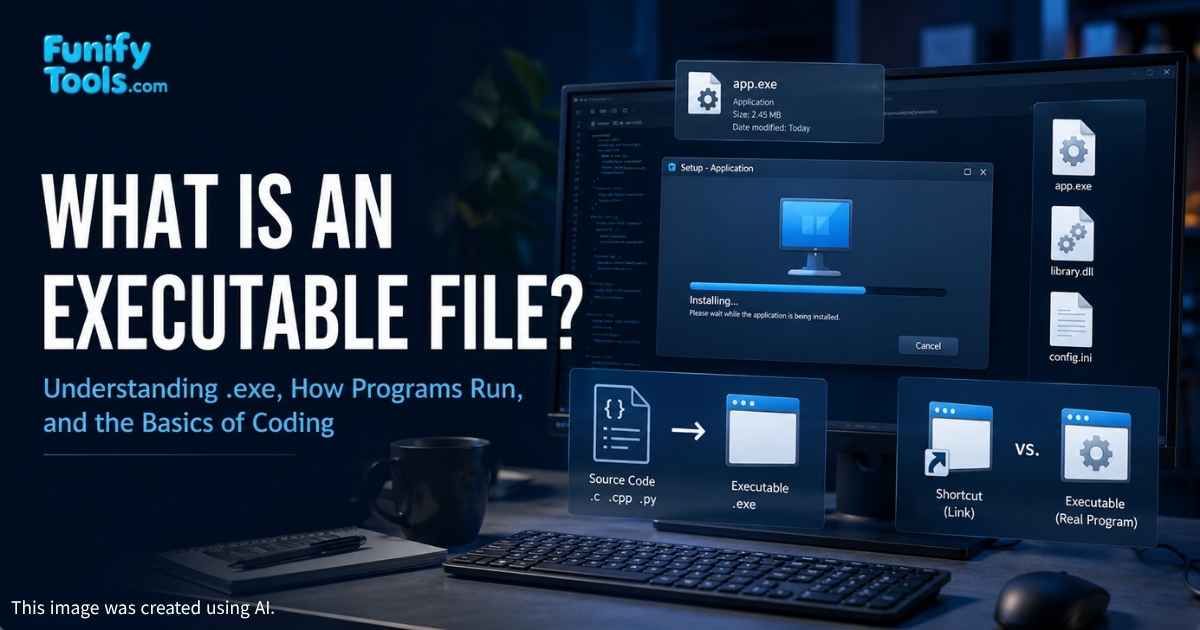
In the previous posts, we went through several basic concepts about how computers handle data. We learned what files and directories are, how extensions act as labels that tell us the type of file, how compressed files help us deal with large amounts of data, and how storage devices and drives determine where files are actually recorded. Continuing from this flow, let us now look at how the programs we use every day actually run, and what an executable file (.exe) really is.
An executable file is different from a document, photo, or compressed archive. A document usually needs another program to open it, but an executable contains instructions that the operating system can load and run. That is why double-clicking a .txt file opens a text editor, while double-clicking a .exe file may start an application, installer, tool, or game.
This is also why executable files deserve more attention than ordinary files. They do not just display information; they can perform actions. A trusted executable can launch useful software, while an untrusted executable can change settings, install unwanted programs, or harm the system.
Installation Recap
Installing a program is not just extracting compressed files and dropping them anywhere. During installation, the program's files are unpacked into proper directories and supporting components are placed: library files such as .dll, configuration files such as .ini, icons such as .ico, and more. Together, these pieces form the application.
In many installed programs, the .exe is the part you actually launch, while the other files support it. The executable may call libraries, read settings, load images and icons, connect to update services, and open data files. If those supporting files are missing or damaged, the executable may fail even though the .exe file itself is still present.
This is why copying only the visible icon from one computer to another usually does not move the whole program. The icon may only point to an executable, and that executable may depend on many other files, registry entries, permissions, or installed components.
What Is an Executable (.exe)?
When you run a program, you do not open each supporting file one by one. You launch the executable with the .exe extension. Think of it as the ignition key: the .exe contains instructions that the operating system reads to load the program and call any required resources.
Without the executable, the program will not start, no matter how many support files it has. The .exe is the button that makes the program work.
More precisely, an executable is a file format the operating system understands as runnable code. On Windows, .exe files usually follow the PE format, short for Portable Executable. You do not need to memorize that name as a beginner, but it helps to know that Windows is not guessing. It recognizes a structure inside the file and knows how to load it into memory.
Once loaded, the CPU begins following instructions. The program may draw a window, ask for files, connect to the internet, play sound, or wait for your input. From the user's point of view, the app simply opens. Under the hood, the operating system is giving that executable memory, permissions, access to devices, and a place in the running process list.
What Happens When You Double-Click an EXE?
Windows checks the file and sees that it is an executable.
The OS loads it into memory so the CPU can begin running instructions.
Required libraries are loaded, such as DLL files the program depends on.
Permissions are checked, especially if the program needs administrator access.
A process starts, and you see a window, installer, command-line tool, or background task.
This explains why some executables open instantly while others show a security prompt or take longer. A small utility may need very little setup. A large game, video editor, or installer may need to check files, load libraries, verify updates, or request elevated permission before it can continue.
Shortcuts vs. Real Executables
Desktop icons you click are usually shortcuts, not the actual .exe. A shortcut is a pointer to the real executable, often located deep under Program Files on the C: drive. Deleting a shortcut does not remove the program; uninstalling it from Settings or Control Panel does.
This is a common beginner misunderstanding. If you delete a desktop icon and the program disappears from your desktop, the program is probably still installed. You only removed one easy path to it. You may still find it in the Start menu, the installation folder, or Windows app settings.
A shortcut can also contain extra launch information, such as the working folder, startup options, or a command-line argument. That is why two shortcuts can point to the same executable but open it in slightly different ways.
EXE Files, Installers, and Portable Apps
Not every .exe is the main program you use every day. Some .exe files are installers. Their job is to place another program onto your system. For example, a downloaded setup file may be called setup.exe, and after it finishes, the actual app may live somewhere under Program Files.
Other executables are portable apps. They can run from a folder or USB drive without a full installation process. Portable apps are convenient, but they may not integrate as deeply with the system. They might not appear in the Start menu, register file types, or update automatically unless the app provides its own method.
So when you see an .exe, ask what role it plays: is it an installer, the real app, an updater, a helper tool, or a portable program? The extension is the same, but the purpose can be different.
From Code to .exe
How are executables created? Through coding. Developers write source code in languages such as C, C++, C#, Rust, or Go. That source code is then compiled or packaged into a form the computer can run. The final artifact we double-click, the .exe, is the packaged result of those instructions.
From a user's perspective, an executable can feel like a magic box. In reality, it is the end product of logic, data structures, libraries, assets, and build tools. The developer writes human-readable instructions, and the build process turns those instructions into something the operating system and CPU can execute.
Some languages work a little differently. A Python script, for example, may need the Python interpreter unless it is packaged into an executable. Java programs often run through the Java runtime. Web apps may run inside a browser. But the idea is similar: code must eventually be interpreted, compiled, or packaged into something the computer knows how to run.
Why Executable Files Need Caution
Because an executable can perform actions, you should be careful where it comes from. A text file can contain dangerous instructions for a person to read, but it does not run those instructions by itself. An executable can actually do things on the computer if you allow it to run.
Download from official sources whenever possible.
Check the publisher when Windows shows a security prompt.
Be careful with email attachments, especially unexpected
.exefiles.Keep Windows and security tools updated so suspicious files are easier to detect.
Avoid hiding extensions if you want to clearly see whether a file is really executable.
One common trick is giving a file a misleading name, such as making it look like a document or image when it is actually executable. Showing file extensions in File Explorer helps you notice the difference between photo.jpg and something suspicious like photo.jpg.exe.
Wrapping Up
We looked at what an executable is, how it differs from support files and shortcuts, and how coding produces the .exe you run. Up to now we have built a foundation: OS, files, drives, directories, extensions, compressed files, installation, and executables. Together, these ideas help explain how a computer works.
The simplest summary is this: a file stores data, a shortcut points somewhere, an installer sets up software, and an executable actually runs instructions. Once you understand those differences, Windows feels much less mysterious.
Next, we will begin exploring coding itself: how we can create our own programs instead of only running programs made by others.
This article is also available in Korean: Read the Korean version