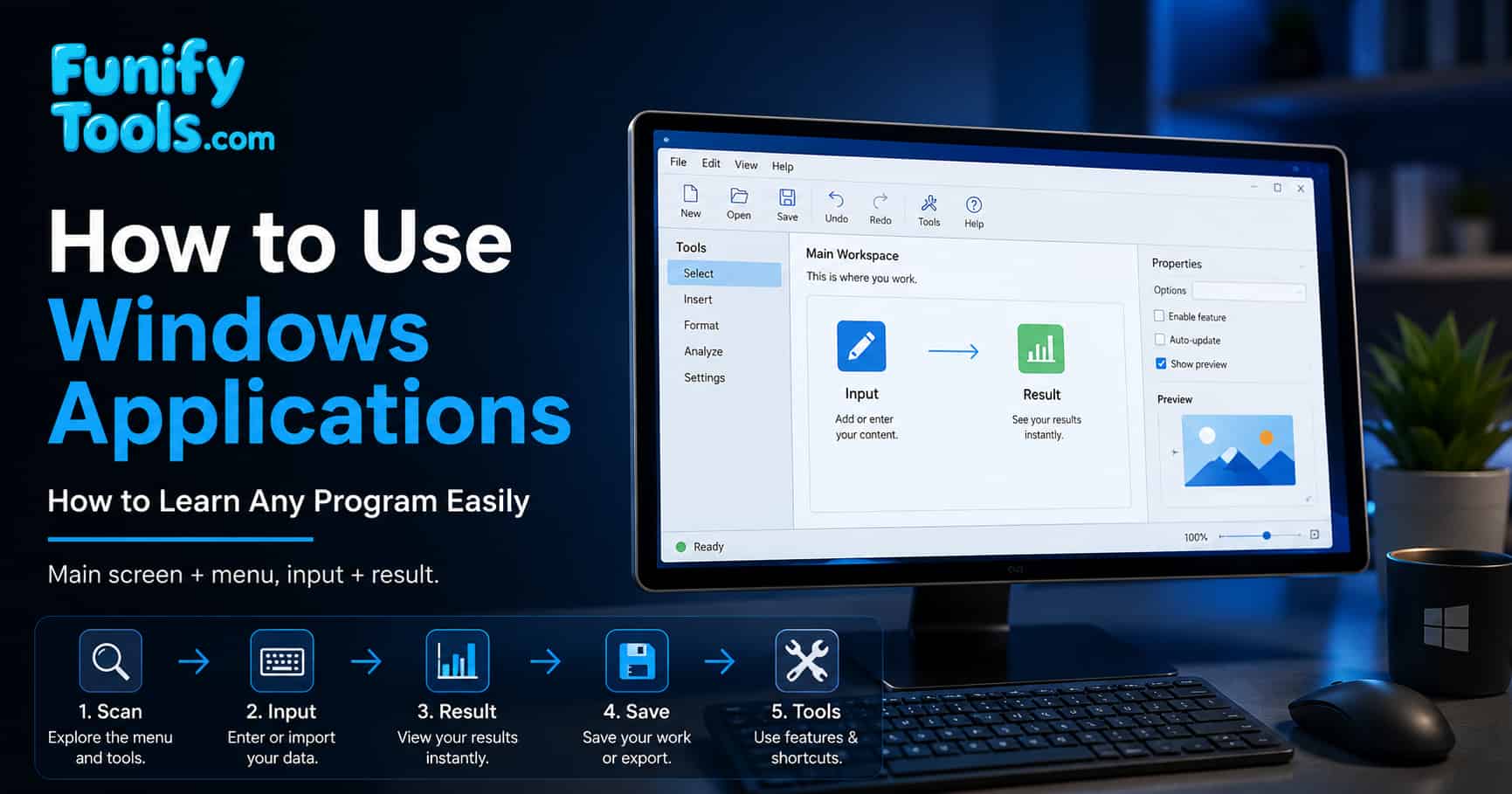
Applications are the visible tools we use—music players, editors, browsers—while the OS works behind the scenes to manage resources and prevent conflicts.
Nearly every app shares the same skeleton: a main workspace plus menus that issue commands. You give input; the app shows the result.
Learn new software faster by scanning its menus first, then trying simple input → result actions. The UI changes, but the core pattern doesn’t.
In the previous post, we talked about operating systems, and finally even touched on macOS and iOS.
If the operating system is like the house of a computer, then the applications are the furniture and tools inside it. The OS works behind the scenes, managing resources and preventing conflicts between devices and software. Applications, on the other hand, are what we actually face on the screen—the tools that create visible results. Most people don’t really “feel” the operating system directly, but they do experience computers through the applications that run on it. In that sense, using a computer essentially means using applications. That’s why today, we’ll be taking a closer look at applications.
Many people think they are bad at using computers because a new program looks complicated. But most of the time, the problem is not ability. It is simply unfamiliarity. Once you notice the repeated patterns that appear across Windows applications, a new program becomes much less scary.
The goal is not to memorize every button in every app. That would be impossible and unnecessary. The better approach is to understand the common structure behind apps, then use that structure as a map whenever you open something new.
Applications at a Glance
Applications come in many forms. If you want to listen to music, you open a music player. If you want to draw, you open Paint or Photoshop. For documents, you use Word; for numbers, Excel; for presentations, PowerPoint. To watch videos, you open a media player, and for the internet, you launch a browser. Each program has its own purpose, but in reality, all of them work on the same principle. The names and functions of menus differ, but the structure and flow are nearly identical.
Think about how different these apps look on the surface. Excel has cells, Word has a blank page, PowerPoint has slides, Paint has a canvas, and a browser has tabs and an address bar. At first glance, they seem unrelated. But they all wait for your input, offer menus or tools, show a result, and let you save or share your work.
This is why learning one application carefully often helps you learn others faster. If you understand how Save, Open, Copy, Paste, Undo, Zoom, and Settings work in one program, you will recognize similar ideas in many other programs. The labels may move around, but the habits transfer.
Main Screen + Menu: The Core Pattern
Most programs can be broken down into two main areas: the main workspace where you actually create something, and the menu, which gives you control. The workspace is like a stage where you type text or draw pictures. The menu is like the lighting and tools that let you shape what happens on that stage. When you tell the menu, “Save this file,” the result is reflected in the workspace. When you select “Bold,” the text on the screen immediately changes. At its core, every program follows the same simple rule: you give a command through the menu, and the result appears in the main screen.
The main workspace is usually the part of the app that deserves most of your attention. In Word, it is the page. In Excel, it is the grid. In Paint, it is the drawing area. In a video editor, it may be the timeline and preview screen. When you feel lost, first ask yourself: where is the workspace, and what am I trying to make or change there?
The menu area is where you look for actions. It may contain words, icons, tabs, side panels, or toolbars. Some apps use a traditional menu bar, while others use a ribbon or a compact icon layout. The design changes, but the purpose is the same: the menu gives you commands that affect the workspace.
Where Menus Live
Menus are usually placed at the top of the screen. Think of common Office programs in Windows: Word, Excel, and PowerPoint all have menus like File, Edit, View, and Format arranged neatly at the top. In some programs, menus might appear on the left, or these days, they may be represented by icons. Rarely do you see menus at the bottom (since Windows already has a taskbar there). Another important type is the context (right-click) menu—it shows only the commands relevant to what you selected, speeding up your work.
Modern apps sometimes hide menus behind symbols. Three dots often mean "more options." A gear usually means settings. A magnifying glass means search. A floppy disk icon often means save, even though many people no longer use floppy disks. These visual patterns become easier to recognize once you start looking for them.
The right-click menu is especially useful because it changes depending on where you click. If you right-click selected text, you may see copy, paste, font, or formatting options. If you right-click a file, you may see rename, delete, properties, or open with. It is like asking the program, "What can I do with this thing right now?"
Input → Result (Everywhere)
In the end, every program comes down to input and result. The user gives input through the keyboard or mouse, the program interprets it, and the result appears on screen. For example, in Excel, you click a cell and type, and the text shows up. Then, you click the Bold button, and the text becomes bold. This same pattern applies everywhere: adding a slide in PowerPoint, saving a file in Notepad, drawing a line in Paint. It’s always input → result.
This input-result pattern is useful because it encourages experimentation. If you are not sure what a button does, try it on a test file or a blank document. Type a word, select it, click a button, and watch what changes. The result teaches you faster than only reading explanations.
Of course, it is smart to protect important files first. If you are practicing in a program you do not know, make a copy of the file or create a new sample file. Then you can explore freely without worrying about damaging your real work.
Learn New Apps by Reading Menus First
Knowing this principle makes new programs far less intimidating. When you open a program for the first time, simply look for the menus. They’re labeled in a way that’s easy to understand, so scanning them gives you a quick overview of what the program can do. In PowerPoint, menus like Design, Animations, and Slide Show clearly show it’s for presentations, styling, and displaying slides. Notepad’s menus—File, Edit, View, Format—make it obvious that it’s a basic text editor. In Paint, you’ll see images, colors, and shapes: a tool for drawing, coloring, and inserting shapes.
A good first pass is simple: read the top menu names without clicking anything yet. Ask what categories you see. Is there a File menu? A View menu? A Tools menu? A Share button? A Settings area? This gives you a rough map of the app before you start pressing buttons.
After that, try one small task. In a writing app, type a sentence and save it. In an image app, draw one line and change its color. In a browser, open a page and bookmark it. A small successful task gives you confidence and shows how the app responds to your actions.
Common Menu Patterns
- File: open, save, export, print
- Edit: copy, paste, cut, undo
- View: zoom, toolbars, layout
- Program-specific: Word (formatting), Excel (formulas/data), PowerPoint (slides/animations)
- Help: feature explanations, troubleshooting
These menu names are like road signs. File usually deals with the whole document or project. Edit usually changes selected content. View changes how things appear without necessarily changing the actual content. Help is where you go when you need guidance, shortcuts, updates, or version information.
Once you understand these categories, you can guess where a feature might be. Want to save as PDF? Start with File. Want to copy something? Try Edit or the right-click menu. Want to zoom in? Look under View. This guessing process is not random; it is how experienced users navigate unfamiliar software quickly.
A Simple 5-Minute Learning Routine
When you open a new Windows application, do not try to learn everything at once. Spend five minutes building a basic map. First, identify the main workspace. Second, scan the top menus or side panels. Third, find File, Settings, Help, and any obvious tool buttons. Fourth, create a tiny sample and try one action. Finally, undo the action or save the sample so you understand how the app handles changes.
This routine works because it turns a large unknown program into a small set of questions. Where do I work? Where are the commands? How do I save? How do I undo? How do I find help? If you can answer those questions, you already know enough to begin using the program.
After the first five minutes, learn only the features connected to your real goal. If you need Excel for a budget, learn cells, formulas, formatting, and saving. You do not need to study every chart, macro, and data tool on day one. If you need PowerPoint for a presentation, start with slides, text boxes, images, and slideshow mode. Practical learning sticks better than trying to memorize every feature.
Overcoming the Fear of New Software
People often fear new programs simply because the screen looks unfamiliar. But beneath the surface, they all share the same skeleton. Ask, “Where’s the menu? What words do I see here?”—and you’ll quickly grasp what the program is for. Then learn only the features you need, one by one. You don’t need to master everything at once.
Another reason people hesitate is the fear of making mistakes. But most applications give you safety nets. The Undo command, usually Ctrl+Z, is one of the most useful tools in all of computing. Save As lets you create a separate copy. Recent files help you reopen work. Auto-save and recovery features can sometimes restore unsaved changes.
It helps to separate practice from real work. If you are learning a photo editor, do not start with your only copy of an important family photo. Make a duplicate and experiment there. If you are learning a spreadsheet, create a small test table. This removes pressure and makes learning feel more like exploration.
Also remember that confusion is normal at the beginning. A new app is like a new kitchen: the knives, bowls, and spices may be in different drawers, but the basic activities are still cutting, mixing, heating, and serving. Software is similar. The controls move around, but the basic ideas repeat.
Small Skills That Help Everywhere
Some skills are useful in almost every Windows application. Learn keyboard shortcuts such as Ctrl+C for copy, Ctrl+V for paste, Ctrl+S for save, Ctrl+Z for undo, and Ctrl+F for find. These shortcuts work in so many programs that they become a kind of universal computer language.
Learning how to select things is also important. Many commands apply only to what is selected. If you select text and click Bold, only that text changes. If you select a file and press Delete, that file is affected. If nothing is selected, the command may do nothing or apply to the whole document. Before using a command, ask yourself what is currently selected.
Finally, pay attention to status messages. Apps often tell you what is happening: saving, uploading, syncing, exporting, rendering, or updating. These small messages explain why something may take time and help you avoid closing a program too early.
Wrapping Up
While appearances differ, the framework is the same. Understand main screen + menu and input + result, and you can pick up the basics of any program quickly—like riding any bicycle once you know how to ride one. Operating systems will come and go, and applications will appear and disappear, but the core principle doesn’t change. Scan the menu first; test input and see the result; iterate. Once you’ve learned this, you’ll never be afraid of applications again.
The most important mindset is this: you do not need to know every feature to use a program well. Most people use a small set of functions repeatedly. If you can open, create, edit, save, undo, search, and export, you already have the foundation. The rest can be learned when you actually need it.
So the next time you open an unfamiliar app, slow down for a moment. Find the workspace, scan the menus, try a small input, check the result, and use undo if needed. That simple rhythm is enough to start learning almost any Windows application.
Thank you so much for reading. In the next post, we’ll take a look at some of the most important Windows programs one by one. Learning is fun—and as always, I wish you happiness!
This article is also available in Korean: Read the Korean version