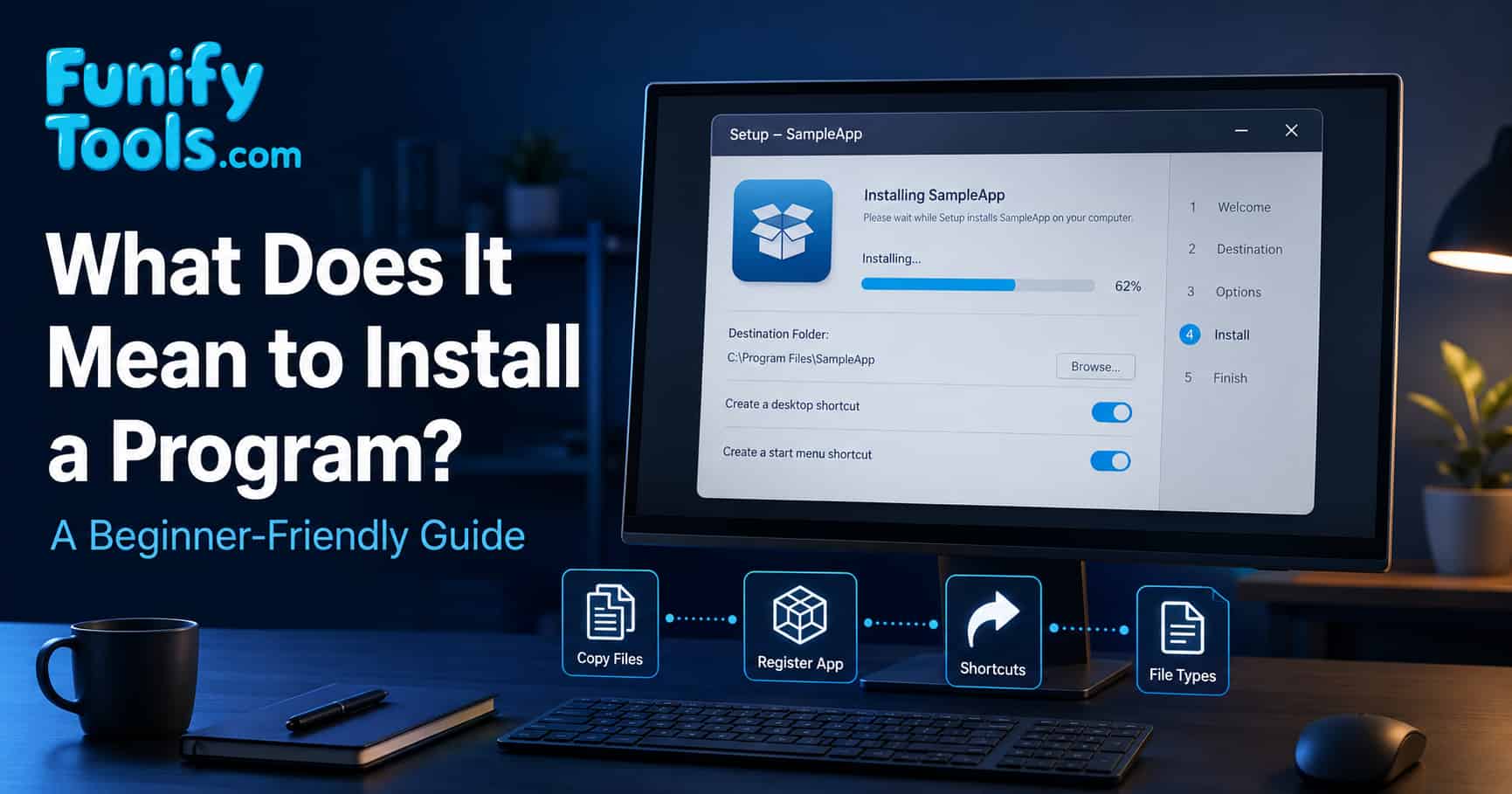
Installing software is not just "copying files." It means registering a program with the operating system so it can run, appear in menus, save settings, receive updates, and open the right file types.
Behind the scenes, installers copy components, create settings/data folders, add shortcuts, configure permissions, and sometimes install services or background helpers. The operating system itself is also installed first, laying the foundation for every other app.
If app stores on phones feel simple, that is because they automate the same basic flow: download, verify, register, add an icon, and launch.
In the previous post, we looked at the basic programs that come pre-installed with Windows. Tools like Notepad, Paint, and Calculator are already included, so you can use them right away. But as you continue using a computer, you will quickly find that the default apps are not always enough. For specialized tasks, you install additional software, and that is where installation comes in.
At first, installation can feel like a mysterious process. You download a file, click through a few screens, wait for a progress bar, and suddenly a new program appears on your desktop or Start menu. Underneath that simple experience, the operating system is preparing the program so it behaves like a proper part of the computer.
A good way to think about it is this: downloading brings the package to your computer, while installing unpacks it, places it where it belongs, introduces it to the operating system, and prepares it for everyday use.
What "Install" Really Means
Think of installation like furnishing a house: the OS is the house itself; apps are the furniture and appliances you bring in. Copying an app's files is not enough. The OS must recognize and register the program so it can be launched and integrated with the system.
For example, if you install a photo editor, the system may learn that image files can be opened with that editor. If you install a web browser, the system may offer to make it the default browser. If you install a game launcher, it may create folders for game files, save data, updates, and background services.
This is why some programs can run as portable apps while others need a full installer. A small portable tool may only need one folder. A larger program may need shared libraries, drivers, services, file associations, update tools, and user-specific settings.
What Happens Behind the Scenes
- Copy program files to the proper locations.
- Create folders for settings and data.
- Register the app so it appears in Start/desktop and can be uninstalled cleanly.
- Associate file types, such as .docx with Word, so double-clicking opens the right app.
- Configure optional services, shortcuts, context-menu items, or auto-updates.
The "proper locations" are not random. Windows may place core program files under Program Files, user-specific data under AppData, shortcuts in the Start menu, and uninstall information in system settings. macOS may place apps in the Applications folder and keep preferences in user library folders. The details differ, but the idea is the same: the app needs a home and a way to communicate with the OS.
Installers may also add extra pieces that users do not immediately see. A printer installer might add a driver. A cloud storage app might add a background sync service. A code editor might add command-line tools. A game platform might add anti-cheat components. These pieces are part of why installation sometimes asks for administrator permission.
OS Installation vs. App Installation
Interestingly, the operating system is also software, but it is a very large foundation that must itself be installed onto a drive. Once Windows is installed and the PC can boot, you can add apps like Office, media tools, coding editors, browsers, games, or photo editors to build your complete environment.
The difference is that the operating system installation prepares the entire computer: partitions the drive, writes boot files, sets up user accounts, detects hardware, installs basic drivers, and creates the environment where apps can later run. App installation is smaller and more focused. It adds one program into an already working system.
This is also why reinstalling Windows feels much bigger than reinstalling a single app. Reinstalling an app usually affects that app and its settings. Reinstalling an OS can affect the whole machine, including user files, drivers, accounts, and all installed programs.
The Smartphone Analogy
On phones, installing from the App Store or Google Play automates the same steps: download, register, add an icon, launch. Windows apps tend to be larger and may ask a few extra questions, but the principle is identical.
The phone experience feels simpler because the app store controls the process tightly. It checks compatibility, handles updates, keeps apps in predictable locations, and usually removes them cleanly. Desktop operating systems are more flexible, so they also expose more choices: where to install, whether to create shortcuts, whether to start with Windows, and which file types to open.
Why Installers Ask Questions
- License agreement - legal permission to use the software.
- Install location - where the app's files will live.
- Shortcuts - Start menu/desktop entries for quick access.
- File associations - which file types open with the app.
- Optional components - plug-ins, language packs, auto-update, etc.
Each choice simply tells the OS how to register and present the app to you. In many cases, the default options are fine. Beginners usually do not need to change the install folder unless storage space is limited or the program specifically recommends another location.
Still, it is worth reading installer screens instead of clicking Next too quickly. Some installers offer optional toolbars, startup behavior, telemetry settings, or extra components you may not need. A careful install takes a few seconds longer, but it keeps the system cleaner.
Installing, Updating, and Uninstalling
Installation is only the beginning of an app's life on your computer. After that, the program may receive updates to fix bugs, add features, patch security issues, or improve compatibility with new operating system versions.
Uninstalling is the reverse process, but it is not always perfect. A good uninstaller removes program files, shortcuts, services, and registration entries. Some apps intentionally leave user settings behind so that if you reinstall later, your preferences return. That can be convenient, but it also explains why uninstalling does not always erase every trace.
For safety, it is best to uninstall apps through the operating system's app settings or the official uninstaller rather than simply deleting the program folder. Deleting files manually may leave broken shortcuts, background services, or file associations behind.
Safe Installation Habits
- Download from official sources whenever possible.
- Check the publisher before granting administrator permission.
- Avoid suspicious bundles that add unrelated apps.
- Keep installers and apps updated to reduce security risk.
- Remove apps you no longer use to keep the system tidy.
These habits matter because installation gives software a place inside your system. Most programs are harmless, but a malicious or poorly made installer can change settings, add unwanted startup items, or create security problems. Treat installers with the same caution you would give to any file that asks for system-level permission.
Key Takeaways
- Installation = registering a program with the OS so it can run properly.
- Behind the scenes: copy files, create data folders, add Start/desktop entries, set associations.
- The OS itself is installed first; apps are added on top to expand capabilities.
- Phone app installs are the same concept, just more automated.
- Updating and uninstalling are part of the same software lifecycle.
Once you understand installation this way, computers feel a little less mysterious. A new program is not just "appearing" on your PC. It is being unpacked, introduced, registered, and connected to the rest of the operating system so you can use it naturally.
This article is also available in Korean: Read the Korean version