
What this countdown timer is useful for
An online countdown timer is most helpful when a future date needs to stay visible while you plan, study, work, or prepare for an event. Instead of checking a calendar again and again, you can create a clear countdown card and see how much time remains in days, hours, minutes, and seconds. This makes the target feel more concrete and easier to manage.
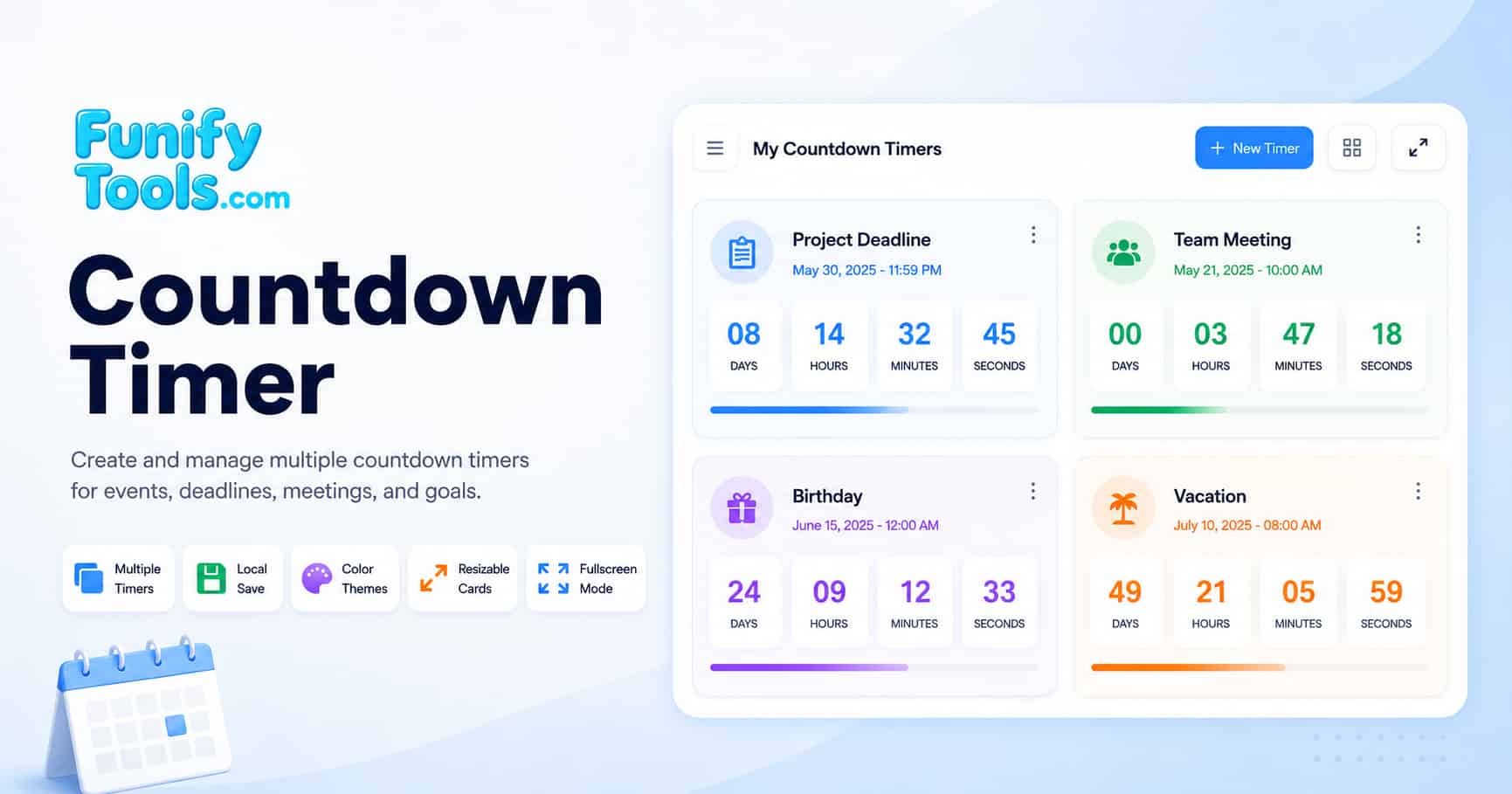
This page is designed for real-life countdown tracking rather than a single temporary timer. You can create multiple countdown cards for events, deadlines, meetings, exams, trips, product launches, personal goals, and seasonal plans. Each card can have its own title, target date, visual style, and group, so the page works like a simple countdown dashboard inside your browser.
| Use case | Example title | Best setup | Why it helps |
|---|---|---|---|
| Project deadline | Website launch | Set the final delivery date and keep it in a work group | Keeps the remaining time visible while planning tasks |
| Study plan | Final exam | Create one card for each major exam or application date | Helps students judge how much preparation time is left |
| Travel planning | Flight to Seoul | Use a clear travel date and a relaxed visual color | Makes packing, booking, and schedule checks easier |
| Event countdown | Birthday party | Use a memorable title and keep the card easy to scan | Adds a simple visual reminder for important personal events |
Choosing the right target date and time
The most important part of any countdown is the target date. For casual events such as birthdays, vacations, and personal goals, choosing the date is usually enough. For meetings, launches, online sales, ticket releases, or international events, the exact time matters more. A countdown to midnight can be misleading if the real event starts at 10:00 AM or ends at 11:59 PM.
Before creating an event countdown or deadline timer, check the official schedule and confirm whether the time is based on your local time zone or another location. This is especially important for remote meetings, global product launches, online classes, limited-time promotions, and travel plans. A countdown is most useful when the target date reflects the real moment you care about.
Creating useful countdown cards
A good countdown card should be easy to understand at a glance. Use short titles that describe the actual event, such as Tax deadline, Japan trip, Math exam, or Product launch. Avoid vague names such as Important or Soon, because they become confusing when you have several countdowns on the same page.
If you use the countdown timer for productivity, create cards for meaningful dates instead of every small task. For example, one card for a final report deadline is more useful than ten cards for tiny checklist items. The goal is to keep the page readable so you can quickly understand what matters next.
| Purpose | Recommended title style | Card priority | Useful habit |
|---|---|---|---|
| Work deadline | Specific project or deliverable name | High | Review it at the start and end of the workday |
| School schedule | Subject plus exam or assignment name | High | Keep one card per major due date |
| Personal event | Event name and location if needed | Medium | Use a color that makes the event easy to recognize |
| Long-term goal | Goal name plus final date | Medium | Check progress weekly instead of every hour |
Managing multiple countdown timers
This countdown calculator supports multiple countdown timers at the same time, which is useful when your schedule has more than one important date. You might track a work launch, a family event, an exam, and a travel date in one dashboard. Keeping them together makes it easier to compare what is coming soon and what still has time.
When the page starts to feel crowded, organize your countdowns by group. For example, you can separate work, study, travel, and personal events. Grouping is helpful because not every countdown needs your attention every day. A clean countdown workspace reduces visual noise and helps the urgent dates stand out.
Using colors, layout, and fullscreen mode
Visual customization is not only decorative. It helps you recognize different countdown types faster. A serious work deadline can use a stronger accent color, while a vacation countdown can use a softer style. If several countdown cards look exactly the same, it takes longer to understand which one needs attention.
Fullscreen mode is useful when you want one countdown view to stay visible during a meeting, presentation, study session, live event, or shared screen. For example, you can display a countdown before a workshop starts, keep a deadline visible during a sprint review, or use it as a simple event timer while preparing for a launch.
Saved countdowns and browser storage
The countdown cards are saved in your browser so you can return to the page later and continue using the same setup. Titles, target dates, colors, and group data can remain available across browser sessions, which makes this tool useful for dates that are days, weeks, or months away.
Because the data is stored locally, it is tied to the browser and device you used. If you switch to another browser, open the page on another device, use private browsing mode, or clear site data, your saved countdowns may not appear. For important deadlines, use this visual countdown timer together with a calendar, alarm, or reminder app.
Best practices for deadline countdowns
Countdown timers work best when they support planning instead of replacing planning. A visible timer can create urgency, but the real value comes from using that urgency to decide what to do next. For deadline tracking, combine the countdown with a task list, project notes, or a calendar reminder.
- Use clear names: write the actual event or deadline name so the card is understandable later.
- Check the target time: confirm whether the event starts, ends, or becomes due at that time.
- Group related cards: separate work, study, travel, and personal countdowns when you track many dates.
- Keep urgent cards visible: place the most important countdowns where you can see them quickly.
For long-term dates, checking the countdown once a day may be enough. For short-term deadlines, it can be helpful to keep the page open while working. The best setup depends on how time-sensitive the event is and how often you need to see the remaining time.
Limitations and reliability notes
This countdown page is a browser-based visual timer. It does not send push notifications, email alerts, text messages, or mobile alarms when a target date is reached. If you close the page or leave your device, the countdown will not actively remind you like a dedicated alarm or calendar notification.
The display also depends on your device time, browser behavior, and JavaScript being enabled. If your system clock is incorrect, the countdown may show the wrong remaining time. If the browser pauses background activity, the display may refresh when you return to the page. For mission-critical schedules, legal deadlines, payments, travel departures, or business launches, always confirm the official time and keep a backup reminder outside the browser.