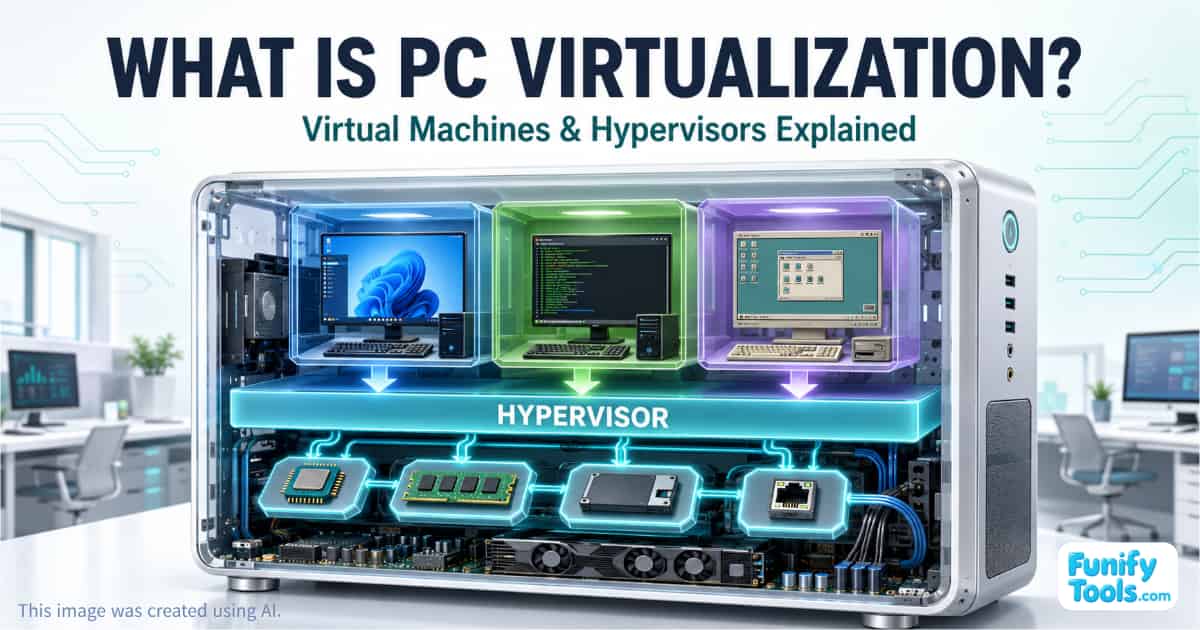
PC virtualization may sound complicated when you first encounter it, but the basic idea is surprisingly simple.
In short, virtualization allows you to create and run multiple virtual computers inside a single physical PC. You may have only one desktop or laptop in front of you, but inside it you can create a Windows machine for software testing, a Linux machine for learning, and even a separate environment for experimenting with an older operating system.
Each virtual computer operates independently, even though they all share the hardware of the same physical machine.
What Is a Virtual Machine?
A virtual machine, often shortened to VM, is a software-based computer created inside a physical computer.
A virtual machine has its own virtual hardware, including:
- Virtual CPU cores
- Virtual memory
- A virtual hard drive
- A virtual network adapter
- Virtual graphics and other devices
You can install an operating system such as Windows or Linux on this virtual hardware just as you would on a physical computer.
When you use a VM, it usually appears as a window on your desktop. Inside that window, another computer goes through its own startup process, displays its own desktop, and runs its own applications.
This makes the idea of virtualization much easier to understand: it feels like having another computer running inside your main computer.
The Host and Guest Operating Systems
Two terms commonly appear when discussing virtual machines: host and guest.
The host is the physical computer and its main operating system. For example, if your laptop normally runs Windows 11, Windows 11 is the host operating system.
The guest is the operating system installed inside a virtual machine. If you open VirtualBox and run Ubuntu Linux inside it, Ubuntu is the guest operating system.
A single host computer can run multiple guest operating systems, depending on its available CPU power, memory, and storage.
For example, one Windows PC could run:
- An Ubuntu VM for Linux practice
- A second Windows VM for software testing
- An older operating system for compatibility experiments
Each virtual machine behaves like a separate computer, although all of them ultimately use resources provided by the host.
What Is a Hypervisor?
A hypervisor is the software layer that creates and manages virtual machines.
It sits between the physical hardware and the virtual machines, controlling how resources are shared. The hypervisor assigns CPU time, memory, storage, networking, and other hardware resources to each VM.
It also creates virtual hardware that the guest operating system can recognize and use.
You can think of the hypervisor as a building manager. The physical computer is the building, and each virtual machine is a separate apartment. The manager divides the available space and utilities while keeping the apartments logically separated.
Popular hypervisors and virtualization platforms include:
- Oracle VirtualBox
- VMware Workstation
- Microsoft Hyper-V
- VMware ESXi
- KVM
- Xen
VirtualBox and VMware Workstation are common choices for personal computers, home labs, and software testing. Hyper-V is included with certain editions of Windows and supports both desktop and server virtualization.
Enterprise environments may use platforms such as VMware ESXi, Microsoft Hyper-V, or KVM to operate dozens or even hundreds of virtual machines across powerful servers.
Type 1 and Type 2 Hypervisors
Hypervisors are usually divided into two main categories.
Type 1 Hypervisor
A Type 1 hypervisor runs directly on the physical hardware instead of relying on a conventional desktop operating system underneath it.
This type is also called a bare-metal hypervisor.
Examples include:
- VMware ESXi
- Microsoft Hyper-V Server deployments
- Xen
- KVM-based server platforms
Type 1 hypervisors are commonly used in data centers because they provide strong performance, centralized management, and efficient resource allocation.
Type 2 Hypervisor
A Type 2 hypervisor runs as an application inside an existing operating system.
Examples include:
- Oracle VirtualBox
- VMware Workstation
- VMware Fusion
- Parallels Desktop
If you install VirtualBox on Windows and then create an Ubuntu virtual machine, VirtualBox is operating as a Type 2 hypervisor.
This approach is convenient for beginners because the virtualization software can be installed and used like a normal desktop application.
What Happens When You Create a Virtual Machine?
When creating a VM, you usually decide how much of the physical computer's resources it may use.
For example, you might assign:
- Four virtual CPU cores
- 8 GB of memory
- 80 GB of virtual disk space
- One virtual network adapter
These resources do not necessarily become permanently unavailable to the host. The hypervisor manages them while the VM is running.
The virtual hard drive is usually stored as one or more large files on the host computer. To the guest operating system, however, it appears to be a normal physical drive.
After configuring the virtual hardware, you attach an operating-system installation image—usually an ISO file—and install Windows or Linux as you would on an ordinary PC.
Why Use PC Virtualization?
One of the greatest advantages of virtualization is the freedom to create controlled testing environments.
If you need to evaluate a program but do not want to install it directly on your main computer, you can create a VM and test it there first. If the guest operating system becomes unstable, you can delete the virtual machine without reinstalling the host computer.
This makes VMs useful for:
- Learning a new operating system
- Testing software installations
- Checking application compatibility
- Practicing server administration
- Creating development environments
- Reproducing bugs
- Testing network configurations
- Running older applications
- Building home laboratories
Virtual machines are especially helpful when you want to experiment freely without filling your primary operating system with temporary programs and configuration changes.
Snapshots Make Experimenting Easier
Many virtualization programs include a feature called a snapshot.
A snapshot records the state of a virtual machine at a particular moment. It can preserve the virtual disk state and, depending on the platform, other configuration or memory information.
For example, you could:
- Install a clean copy of Windows in a VM.
- Apply updates and configure the system.
- Create a snapshot.
- Install and test a program.
- Restore the snapshot if something goes wrong.
Restoring the snapshot returns the VM to an earlier condition, allowing you to repeat the experiment without reinstalling the operating system.
Snapshots are extremely convenient, but they should not be treated as a complete backup. Important virtual-machine data should still be backed up separately.
Running Multiple Operating Systems at the Same Time
Virtualization also makes it possible to use several operating systems without repeatedly restarting your computer.
With dual boot, you must restart the PC whenever you want to switch between Windows and Linux. With virtualization, you can keep Windows running as the host and open Linux in a separate window.
You might use:
- Windows for everyday work
- Linux for server administration practice
- Another Windows VM for browser or application testing
This flexibility is particularly useful for developers, IT students, system administrators, and technical support teams.
Reducing Hardware Costs and Physical Space
Without virtualization, an organization might need a separate physical machine for every server or testing environment.
With virtualization, several VMs can share one powerful host server. This is known as server consolidation.
Consolidation can reduce:
- Hardware purchasing costs
- Electricity consumption
- Cooling requirements
- Rack space
- Maintenance work
- The number of physical devices that must be managed
The same principle can be useful at home. Instead of keeping several older PCs for occasional testing, you may be able to recreate some of those environments as virtual machines on one capable computer.
The host must still have enough CPU performance, memory, and storage to support the VMs comfortably.
Does a Virtual Machine Improve Security?
A VM can provide useful isolation between the guest and host systems.
If ordinary software causes a problem inside a VM, the damage will often remain limited to that virtual environment. You can then restore a snapshot or recreate the machine.
However, a virtual machine is not an absolute security boundary.
Malware may attempt to exploit vulnerabilities in the hypervisor, access shared folders, spread through the network, steal clipboard contents, or attack connected devices. Some malicious programs can also detect virtual environments and change their behavior.
For that reason, an ordinary VM should not be considered a guaranteed safe place to run ransomware, unknown cracked software, or suspected malware.
Professional malware analysis requires a specially designed and isolated laboratory environment. It may involve disabled shared folders and clipboard integration, restricted networking, separate accounts, controlled samples, monitoring tools, and systems that contain no personal or valuable data.
For normal users, the safer choice is not to run suspicious files at all.
Virtual Networking
A virtual machine can connect to networks through a virtual network adapter. Most hypervisors provide several networking modes.
Common options include:
NAT
The VM shares the host computer's internet connection. This is convenient for ordinary use and usually prevents other devices on the local network from directly initiating connections to the VM.
Bridged Networking
The VM appears as a separate device on the same local network as the host. It may receive its own IP address and communicate directly with other devices.
This mode is useful for server and network testing but provides more network exposure.
Host-Only Networking
The VM can communicate with the host and possibly other VMs, but it normally has no direct access to the external network.
This can be useful for isolated laboratory environments.
Internal Networking
Only selected virtual machines can communicate with one another. The host and external network may remain inaccessible.
Understanding these modes is important because a virtual machine connected to the internet or local network is not completely isolated.
Hardware Requirements for Virtualization
Modern virtualization works best when the processor supports hardware-assisted virtualization.
Common technologies include:
- Intel VT-x
- AMD-V
These features may need to be enabled in the PC's BIOS or UEFI settings.
The physical computer also needs enough resources. A practical virtualization system benefits from:
- A multicore processor
- Sufficient RAM
- Fast SSD storage
- Adequate free disk space
- Hardware virtualization support
Memory is often the first limitation. If the host has 8 GB of RAM and you assign 4 GB to a VM, the host and guest must share what remains. Running several VMs at once may therefore make the entire computer feel slow.
An SSD also makes a major difference because the host and virtual machines may perform disk operations simultaneously.
Virtual Machines and Older Operating Systems
Virtualization can be useful for running older operating systems and applications that no longer work correctly on modern hardware.
For example, a VM may help with:
- Testing software designed for an earlier version of Windows
- Accessing an old development environment
- Studying the history of operating systems
- Running legacy business applications
- Recreating an older network setup
Compatibility is not always perfect. Very old systems may expect hardware that the hypervisor does not emulate, and some applications require direct access to specialized devices.
Licensing rules also still apply. Creating a virtual machine does not automatically grant permission to install a commercial operating system or application without a valid license.
PC Virtualization and Cloud Computing
Modern cloud computing is closely connected to virtualization.
Large data centers contain powerful physical servers that can host many isolated virtual machines. When a cloud provider offers a virtual server, the customer is often renting one of these VM instances rather than receiving an entire physical machine.
Services such as Amazon Web Services, Microsoft Azure, and Google Cloud use virtualization and related isolation technologies to allocate computing resources efficiently.
Cloud platforms add many services around these virtual machines, including:
- Automated provisioning
- Usage-based billing
- Virtual networking
- Storage services
- Monitoring
- Backups
- Load balancing
- Security controls
- Rapid scaling
A cloud VM is therefore based on the same fundamental idea as a VM running in VirtualBox, although the infrastructure and management systems are much larger and more sophisticated.
Virtual Machines vs. Containers
Virtual machines and containers both provide isolated environments, but they work differently.
A virtual machine includes a complete guest operating system with its own kernel. This provides strong separation but requires more memory, storage, and startup time.
A container usually shares the host system's kernel while isolating applications and their dependencies. Containers are therefore lighter and can start much faster.
| Category | Virtual Machine | Container |
|---|---|---|
| Operating system | Includes a complete guest OS | Shares the host kernel |
| Resource use | Relatively high | Relatively low |
| Startup time | Usually seconds or minutes | Often seconds or less |
| Isolation | Stronger system-level separation | Process-level isolation |
| Typical use | Multiple operating systems, legacy apps, full system testing | Application deployment and scalable services |
| Common platforms | VirtualBox, Hyper-V, VMware, KVM | Docker, containerd, Kubernetes |
Docker is a popular platform for creating and running containers. Kubernetes manages groups of containers across multiple machines.
Containers are not simply smaller virtual machines, but both technologies are connected to the broader goal of dividing physical computing resources into manageable logical environments.
Virtualization vs. Emulation
Virtualization is sometimes confused with emulation.
Virtualization typically allows a guest system to use the same basic processor architecture as the host. For example, an x86-64 Windows PC can efficiently run an x86-64 Linux VM with hardware assistance.
Emulation reproduces a different hardware architecture through software. An x86 computer might emulate an older game console or an ARM-based system.
Emulation provides greater hardware flexibility but is often slower because instructions may need to be translated.
Some products combine virtualization and emulation techniques depending on the host, guest, and available hardware.
Common Limitations of Virtual Machines
Virtual machines are useful, but they are not always the best solution.
Possible disadvantages include:
- Reduced performance compared with running directly on hardware
- High memory and storage requirements
- Limited graphics performance
- More complicated USB and device access
- Potential software licensing costs
- Additional network configuration
- Large virtual disk and snapshot files
- Security risks caused by poor isolation settings
- Compatibility problems with specialized hardware
Tasks that require powerful graphics cards, very low latency, direct hardware access, or maximum performance may work better on a physical system.
GPU passthrough and other advanced configurations can reduce some limitations, but they require compatible hardware and more technical setup.
Final Thoughts
PC virtualization is a technology that allows one physical computer to operate like several independent computers.
A virtual machine is the software-based computer running inside the host. It has virtual hardware and its own guest operating system.
The hypervisor is the management layer that creates those VMs, assigns physical resources, and keeps the environments logically separated.
The terminology may sound unfamiliar at first, but the concept becomes clear once you create and start your first virtual machine. Tools such as VirtualBox, VMware Workstation, and Hyper-V make it possible to experiment with operating systems, practice IT administration, test software, and build development environments without purchasing another computer.
If you want to understand cloud computing, server infrastructure, containers, or modern data centers, virtualization is one of the most useful foundational concepts to learn.
Thank you for reading, and have a wonderful day!
This article is also available in Korean: Read the Korean version