Whenever I read international news or check an overseas company's schedule, I often need to know the local time. What time does the New York stock market open in Korea? Is it still within business hours in London? If I contact someone in the afternoon from Seoul, what time will it be where they are?
Looking up the time in one city is easy enough. But things become a little more complicated when you need to compare several cities—Seoul, New York, and London, for example. Searching for each city separately and calculating the time differences can be surprisingly tedious. If you also want to check the local weather or find a suitable meeting time, you may end up switching between several different pages.
In my case, I regularly hold meetings with IT professionals based in around 20 cities overseas. Finding a time that works for everyone is never easy. I usually split the participants into two groups and hold two separate sessions, but even then, working out a reasonable time for each city can be difficult.
That is why I built a page where I can see the time and weather in multiple cities on one screen.
I added the weather for a slightly more personal reason as well. It gives me an easy way to break the ice at the beginning of a meeting by saying something like, “It looks like you're getting a lot of rain over there today.” ^^
Try the Funifytools World Time, Weather, and Meeting Time Calculator
This is not meant to be a large or complicated service. It is simply a collection of features that I often wished I had in one place.
In this post, I would like to explain why I built the page and how I use it in everyday situations.
I Wanted to See Multiple Cities on One Screen
Most world clock pages work perfectly well when you only need to check the current time in one city. What I wanted, however, was a way to keep several frequently checked cities on the same screen and compare them at a glance.
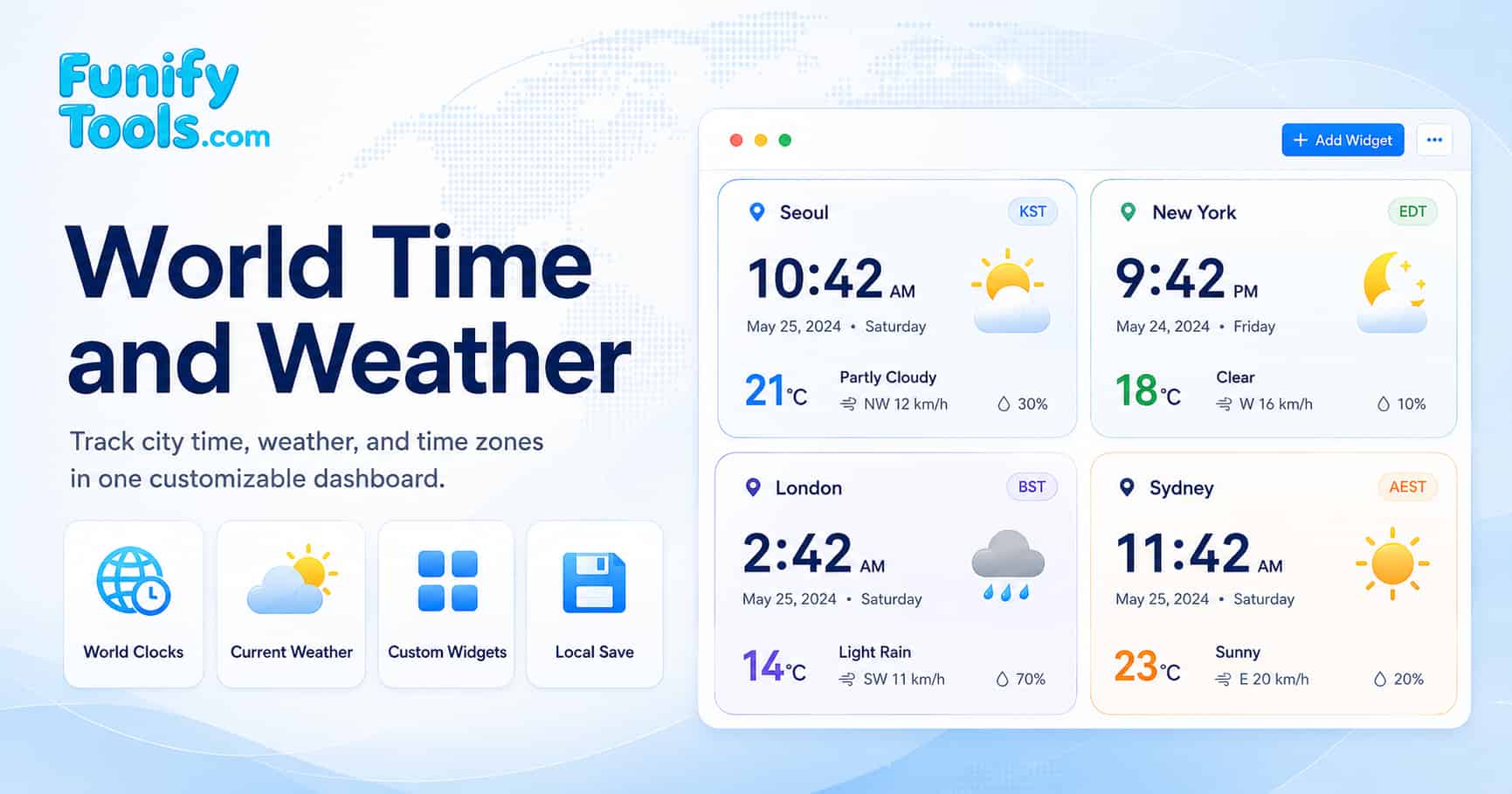
When the page first opens, Seoul, New York, London, and Sydney are displayed by default. Each city card shows the current time and date, along with the local weather and temperature.
Seoul may already be on Saturday while New York is still on Friday. When only the time is shown, it is easy to overlook the fact that the date has changed. For that reason, I included the date and day of the week as well.
I usually keep Seoul and New York next to each other. This is useful when I am checking U.S. company earnings announcements or stock market schedules because I can immediately see the current time in New York. Adding London lets me compare the time across Korea, the United States, and Europe all at once.
The appearance of each city card can also be customized, including its text and background colors.
Search for and Add the Cities You Need
If you need a city that is not displayed by default, you can add it using the search box at the top of the page.
For example, if you are preparing for a trip to Japan, you can search for “Tokyo.” If you want to check the time on the West Coast of the United States, search for “Los Angeles.” As you type, matching cities appear together with their country names. Select the location you want, and its card will be added immediately.
The page is in English, but it is quite straightforward to use. You only need to enter a city name in English and choose the correct result.
After adding cities, I arrange the cards in the order I check them most often. The cards can be dragged and repositioned, so I usually place Seoul first, followed by New York and London.
If you need to add a small town or a location that does not appear in the search results, you can enter its name, latitude, and longitude manually. The search function should be enough for most well-known cities, while manual entry is useful for more specific locations.
Check the Local Weather Alongside the Time
When checking the time in another city, I often find myself wondering about the weather there as well.
This is especially useful when preparing for a trip and comparing the temperature at home with the temperature at the destination. Weather also naturally comes up when speaking with family, friends, or colleagues overseas: “What's the weather like there today?”
Each city card therefore displays the current weather, temperature, wind speed, precipitation, and apparent temperature.
This is not intended to replace a detailed weather forecasting service with hourly or weekly forecasts. It is simply a convenient way to get a quick sense of the city's current conditions.
If the default units are unfamiliar, click the gear icon on the city card to change them. You can choose between 12-hour and 24-hour time, Fahrenheit and Celsius, mph and km/h for wind speed, and inches and millimeters for precipitation.
Since I am based in Korea, I use the 24-hour clock, Celsius, km/h, and millimeters.
Find a Meeting Time for Seoul, New York, and London
The feature I most wanted to include was a way to compare business hours across multiple cities.
Because of the large time difference between Seoul and New York, finding a meeting time that is comfortable for both sides is not easy. Add London or Sydney to the group, and calculating the time difference manually becomes even more difficult.
The “Best Meeting Time” section compares the working hours of the cities currently displayed and suggests possible meeting times. The recommendations are shown in the local time of the person viewing the page, based on the browser's time zone.
I usually add Seoul, New York, and London, then check when the largest number of cities have overlapping working hours. If there is no period when every city is within normal business hours, I can still look for a time when the greatest number of participants are available.
If a city follows different working hours, click the gear icon and adjust its start and end times. Some teams work from 9 a.m. to 6 p.m., while others begin earlier, so the settings can be changed to reflect each group's actual schedule.
This feature can be useful not only for video calls with overseas offices and business partners, but also for deciding when to call family or friends living abroad. It saves you from repeatedly asking yourself, “What time will that be in Korea?”
Keep Work Cities and Travel Destinations in Separate Groups
As more cities are added, the screen can eventually become crowded. To keep things organized, the page allows city cards to be divided into five groups.
I use the first group for cities I regularly check for work, such as Seoul, New York, and London. In the other groups, I keep travel destinations and cities that I am personally interested in.
The group names can be changed as well. Labels such as “Work,” “Travel,” and “Family” make it easy to remember why each group was created when I return to the page later.
Frequently used cities can also be saved by clicking the star icon on their cards. Even if a card is temporarily removed from the current group, it can be restored from Favorites without searching for the city again.
View the Cities on a World Map
The cities you add are also shown on the world map.
When you only look at time as a number, it can be difficult to picture the distance and direction between cities. Seeing them on a map makes it easier to understand why their time differences are so large. When Seoul, London, and New York are displayed together, you can see how widely they are spread across the globe.
The map may also be useful when explaining the relationship between longitude and time zones to children. By adding cities one at a time and comparing their locations with their current times, you can explore world geography and time zones together.
If you want to focus on the city cards, click “Full View” at the top of the page. This reduces the surrounding content and gives the cards more space. It can be useful if you want to leave the page open on a separate monitor like a personal world clock.
Return to the Same Setup Later
Your city cards, groups, and unit preferences are saved in the browser you are currently using. If you close the page and return later with the same browser, your previous setup should still be there.
It is convenient because no account or sign-in is required, but it is important to understand that the information is stored locally in the browser.
The same setup will not automatically appear when you open the page on another computer or smartphone. Your saved cities may also disappear if you delete the browser's cookies or site data.
It is best to think of this as a lightweight tool for arranging frequently checked cities in your own browser, rather than a service for storing important information permanently.
How I Use the Page
When I am checking news or schedules related to the U.S. market, I first compare the time in Seoul and New York. If something involves Europe, I add London. For schedules in Japan, I open the group that contains Tokyo.
Before an international meeting, I use the meeting-time section to see when working hours overlap. When planning a trip, I check both the local time and the current weather at my destination.
This may not be a page that everyone needs every day. If you only want to check the time in one city, a quick search will usually be enough.
However, if you regularly compare several cities or communicate with people across large time differences, keeping those cities together on one screen can be very convenient.
I originally built this page for my own use, but I thought it might also help others who have experienced the same inconvenience.
Try adding a few cities that matter to you. You may find it more useful than a simple world clock once you begin using it regularly.
Please use the current weather information as a quick reference only. For flights, hiking, typhoons, severe weather, or any other safety-related plans, always check the latest forecasts and official information from the relevant local weather authority.
Thank you for reading. Wishing you a happy day!
#WorldTime #WorldWeather #CityTime #InternationalTime #TimeZoneCalculator #MeetingTimeCalculator #WorldClock #GlobalBusiness #TravelPlanning #UsefulWebsites
This article is also available in Korean: Read the Korean version